

Page reloads during checkout can make a simple purchase feel interrupted. Shoppers expect totals, shipping options, coupons, and payment sections to update smoothly while they stay on the same checkout page. When the whole page refreshes too often, the process can feel slower, less stable, and easier to abandon.
This guide explains how to enable checkout without page refresh in WooCommerce with clear steps that show how plugins, settings, and custom code can improve the checkout flow. You will learn how each method works and when to use it for the best results. Keep reading to see the full process in simple words.
Quick Tips for WooCommerce Checkout Without Page Refresh
Checkout without page refresh works best when WooCommerce can update shipping, coupons, payment sections, and order totals without reloading the full checkout page.
- Use AJAX-friendly checkout behavior
- Avoid caching the checkout page
- Keep WooCommerce checkout scripts active
- Test coupon and shipping updates
- Check payment method switching
- Test guest and logged-in checkout flows
What Impact Can Checkout Without Page Refresh Make in a WooCommerce Store?
Checkout without page refresh can make a WooCommerce store feel faster, smoother, and easier to complete. When coupons, shipping methods, payment options, and order totals update dynamically, shoppers can stay focused on placing the order instead of waiting through repeated page reloads.
It can help your store by:
- Reducing interruptions during checkout
- Making coupon and shipping updates feel smoother
- Helping shoppers keep their form progress
- Improving mobile checkout experience
- Reducing confusion around changing totals
- Keeping buyers focused on payment
- Creating a more modern checkout flow
- Supporting a faster path from cart to order completion
Does WooCommerce Support AJAX Checkout by Default?
WooCommerce supports some AJAX checkout behavior by default, such as updating order totals, shipping methods, taxes, and payment sections without reloading the full page. However, it does not provide a fully AJAX-powered checkout submission by default, so the final order placement and some checkout actions may still reload or process through the standard WooCommerce flow.
For a smoother no-refresh experience, store owners often use plugins or custom code to enable AJAX checkout for WooCommerce stores. This can help reduce page interruptions, keep shoppers on the same checkout screen, and make the buying process feel faster without breaking payment, shipping, or order validation.
How to Enable Checkout Without Page Refresh in WooCommerce?
You can make WooCommerce checkout feel smoother by allowing key checkout details to update without reloading the full page. This means shipping methods, coupons, taxes, fees, payment sections, and order totals can refresh dynamically while shoppers stay on the same checkout screen. Here are the main ways to enable checkout without page refresh:
Method 1: Use WooCommerce’s Built-In AJAX Behavior
WooCommerce already supports partial AJAX updates during checkout. For example, order totals, shipping methods, taxes, fees, and payment sections can update dynamically when shoppers change checkout details. The goal is to keep this default behavior working properly by avoiding cache, script, or theme conflicts.
Steps:
- Keep WooCommerce checkout scripts enabled
- Avoid delaying or deferring checkout JavaScript
- Exclude checkout, cart, and account pages from full-page caching
- Test shipping address, coupon, tax, fee, and payment updates
- Check whether the order review section updates without a full page reload
You can also enable AJAX add to cart before checkout:
- Go to WooCommerce > Settings > Products
- Enable AJAX add to cart buttons on archives
- Save the changes
- Test add-to-cart behavior on shop and category pages

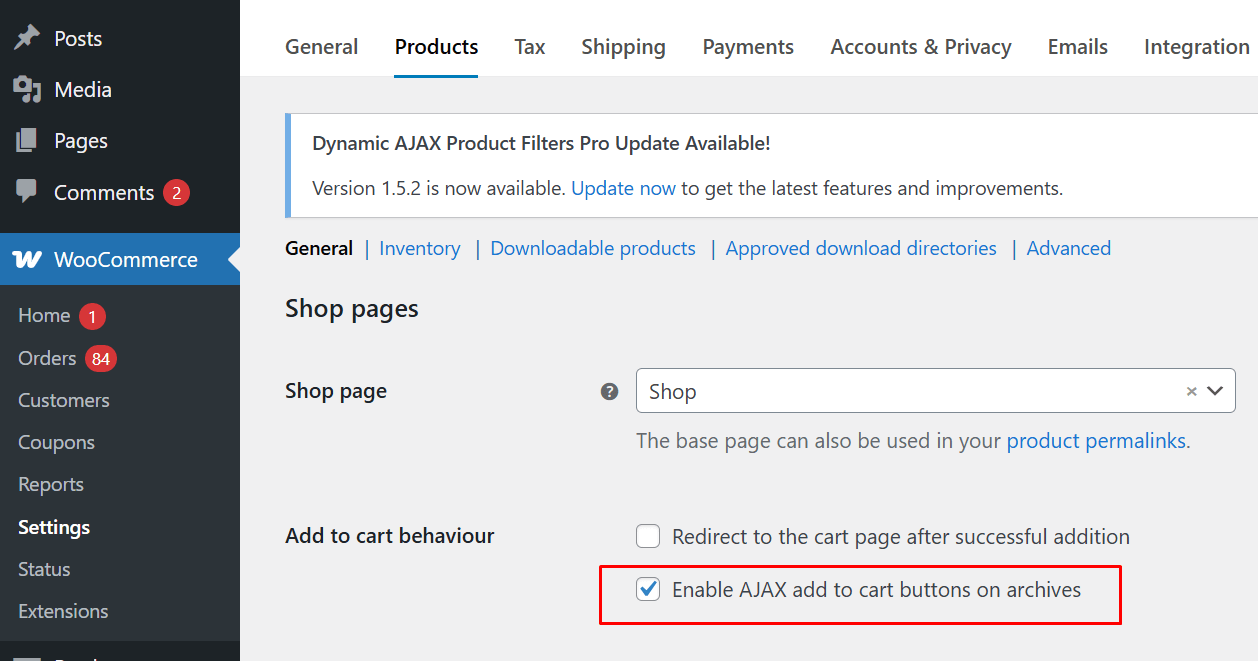
Important: AJAX add to cart does not create a full AJAX checkout. It only reduces reloads before shoppers reach checkout.
Method 2: Use an Ajax Checkout Plugin
Default WooCommerce AJAX behavior helps with dynamic checkout updates, but it does not always create the smoothest buying flow by itself. A plugin like One Page Quick Checkout for WooCommerce can help reduce extra page jumps and make the checkout process feel faster for shoppers.
Here is the full process:
Step 1: Install the Plugin
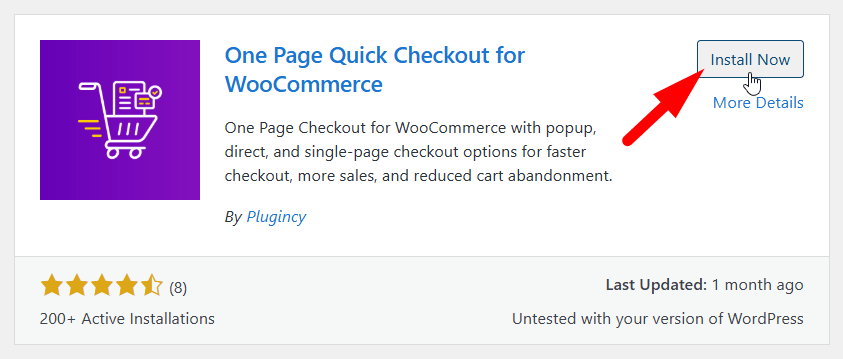
Installation (Free Version)
- Go to the WordPress Admin Dashboard
- Click Plugins → Add New
- Search for One Page Quick Checkout for WooCommerce
- Click Install Now, then Activate

Installation (Pro Version)
- Purchase the Pro version from the official website
- Download the ZIP file from the email you receive
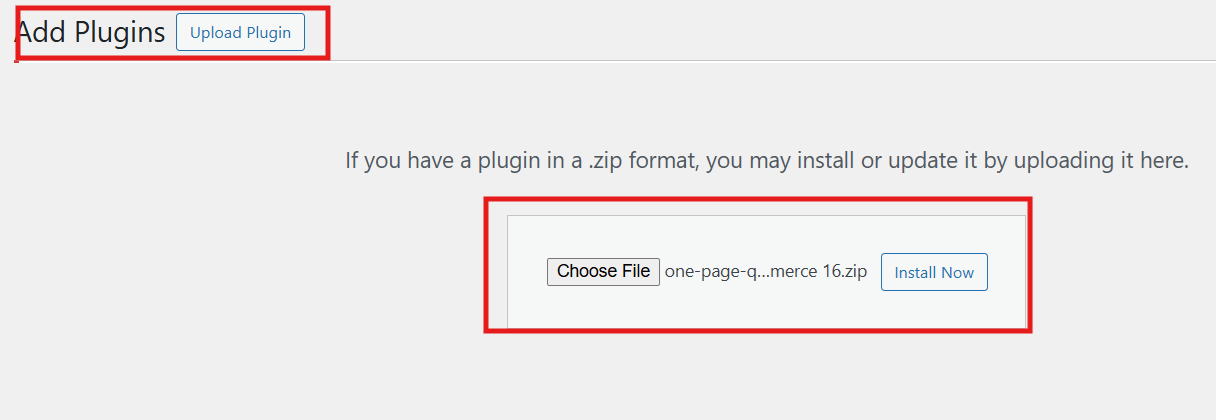
- Go to Plugins → Add New → Upload Plugin
- Upload the ZIP file and click Install Now

- Activate the plugin
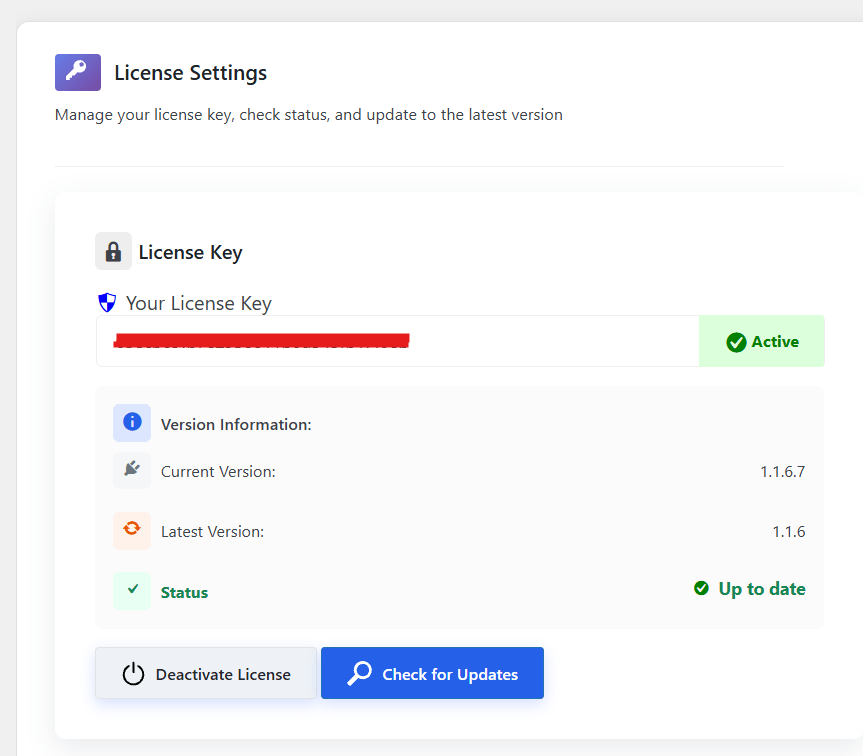
- Go to Onpage Checkout → Plugin License
- Enter your license key to unlock Pro features

Step 2: Types of One Page Checkout
You can set up one page checkout in two different ways:
- Single product one page checkout
- Multi product one page checkout
Single Product One Page Checkout
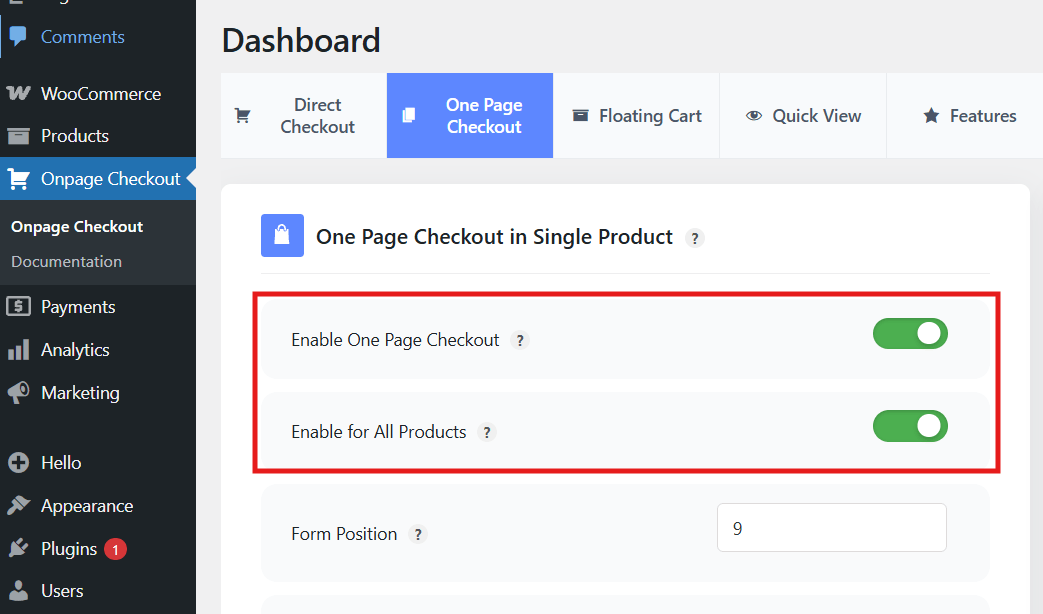
- Go to Onpage Checkout in your WordPress dashboard
- Click One Page Checkout
- You will see two options:
- Enable One Page Checkout
- Enable for All Products

How These Options Work
- Enable One Page Checkout: Use this if you want one page checkout only for selected products. You must open each product and enable it from the Product Data section.
- Enable for All Products: This option applies one page checkout to every product automatically.
Additional Configuration Options
You can adjust these settings to control the behavior:
- Form Position
- Empty Cart on Page Load
- Add to Cart on Page Load
- Hide Add to Cart Button
- Checkout Layout
Multi Product One Page Checkout
This setup lets customers choose multiple products and check out on the same page.
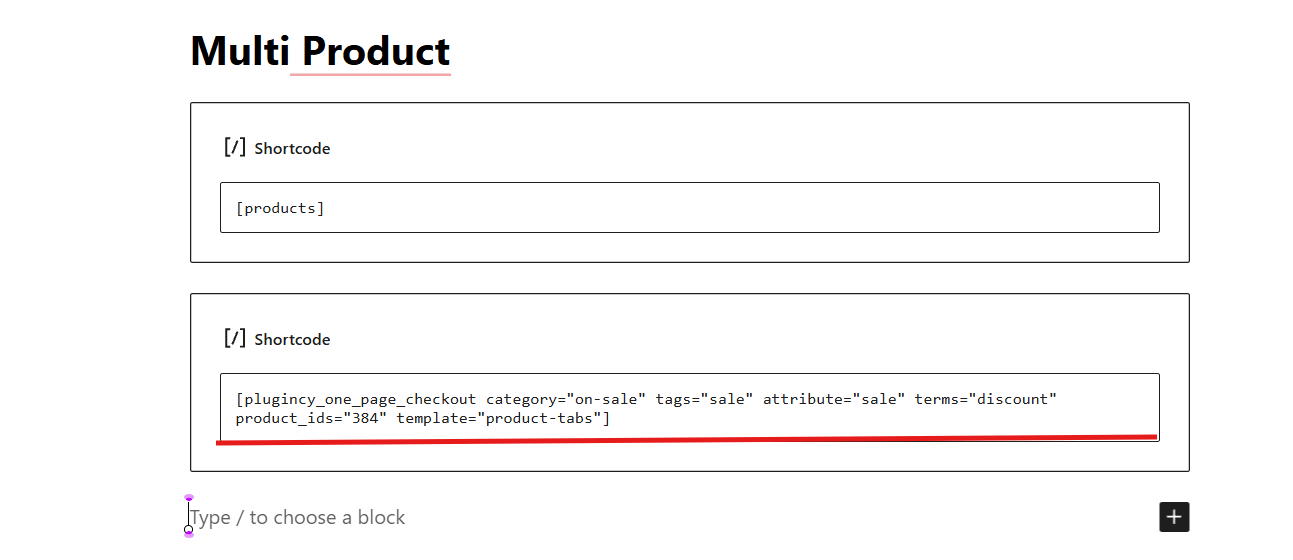
Using the Shortcode
Use the shortcode (remove the extra bracket):
[[plugincy_one_page_checkout category="" tags="" attribute="" terms="" product_ids="" template="product-tabs"]]
Shortcode Attributes
- category
- tags
- attribute
- terms
- product_ids
- template
Available templates include:
product-table, product-list, product-single, product-slider, product-accordion, product-tabs, pricing-table
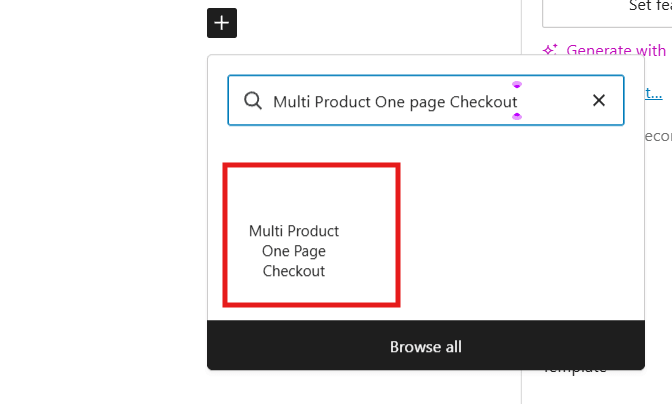
Using WordPress Blocks
- Open the page editor
- Search for Multi Product One Page Checkout blocks
- Select your products and layout
- Adjust styling
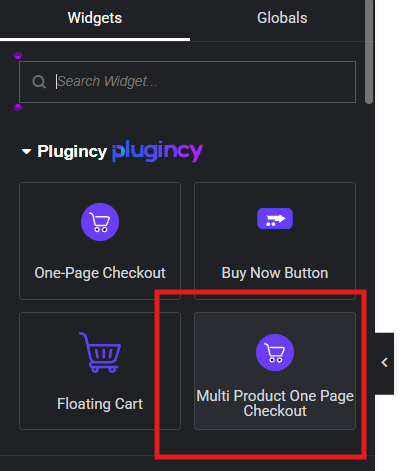
Using Elementor
- Open a page with Elementor
- Search for the Multi Product One Page Checkout widget
- Select products and layout
- Style the widget as needed
Method 3: Use Custom Code for Checkout Field Updates
You can add a small custom script to make checkout fields update without a page reload. This uses WooCommerce’s built in AJAX functions.
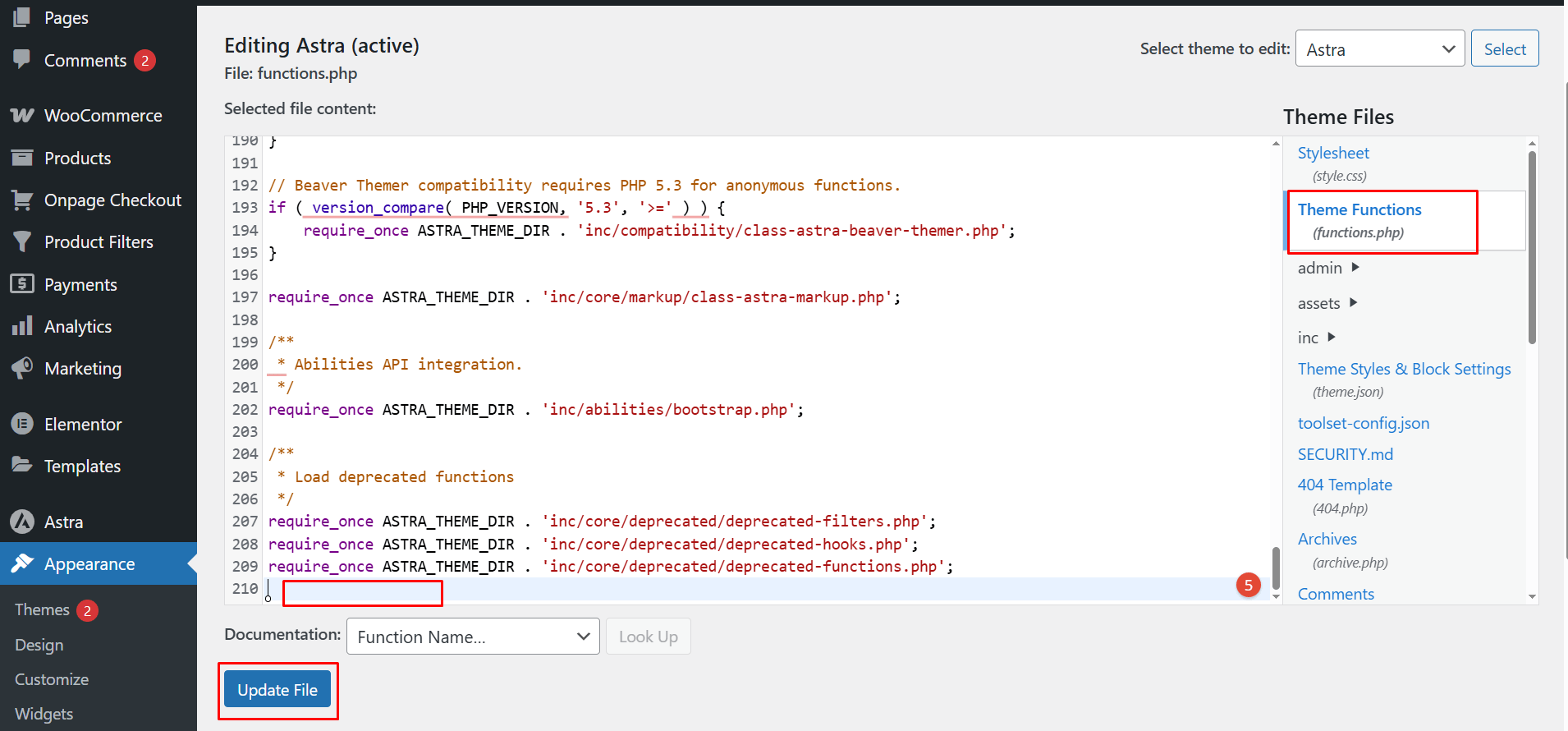
Steps
- Open your theme’s functions.php or use a Code Snippet plugin.
- Add the code below.
Sample code
// Trigger checkout refresh without page reload
add_action(‘wp_footer’, ‘ajax_update_checkout_script’);
function ajax_update_checkout_script() {
if (is_checkout()) {
?>
<script>
jQuery(function($) {
$(‘form.checkout’).on(‘change’, ‘input, select’, function() {
$(document.body).trigger(‘update_checkout’);
});
});
</script>
<?php
}
}
What this code does
- Listens for changes in checkout fields.
- Calls WooCommerce’s update_checkout AJAX event.
- Updates fees, totals, shipping and other fields without reloading the page.
Why use it: Good for developers who want more control.
Which Method Should You Use?
The best method depends on how much no-refresh behavior your store needs. Start with WooCommerce’s built-in AJAX behavior first, then use a plugin or custom code only if the default setup does not give the checkout experience you want.
| Method | Best For | Why Use It |
| Built-In WooCommerce AJAX Behavior | Stores that only need normal checkout totals, shipping, and payment updates | Uses WooCommerce’s native checkout update system without extra setup |
| One Page Quick Checkout for WooCommerce | Stores that want fewer page jumps and a faster checkout flow | Helps create a smoother buying path with plugin-based checkout options |
| Custom Code | Developer-managed stores that need more control over checkout updates | Allows custom handling of checkout field changes and dynamic update triggers |
For most stores, the safest choice is to keep WooCommerce’s default AJAX checkout updates working properly and avoid caching or script issues. Use One Page Quick Checkout for WooCommerce when you want a more guided, faster checkout experience without writing code. Choose custom code only when you have developer support and need a store-specific no-refresh checkout behavior.
Monitoring Checkout Behavior After Enabling No-Refresh Checkout
After enabling no-refresh checkout, monitor how the checkout behaves in real use. A smooth AJAX checkout should update totals, coupons, shipping methods, and payment sections without confusing buyers or breaking the order flow.
Track these areas after setup:
- Checkout Abandonment Rate: Check whether fewer shoppers leave after reaching checkout. If abandonment stays high, review form length, payment options, shipping costs, and mobile usability.
- Checkout Load Time: Run regular WooCommerce checkout performance testing to see how quickly the checkout page loads and how fast AJAX updates respond. Slow updates can still feel broken, even when the page does not fully refresh.
- AJAX Update Errors: Use browser developer tools to check for failed checkout requests, JavaScript errors, or blocked update_checkout actions. These errors can stop totals, fees, or payment sections from updating.
- Payment Success Rate: Monitor completed payments, failed payments, and retry attempts. A no-refresh setup must still work reliably with your payment gateways.
- Coupon and Shipping Behavior: Apply coupons, remove coupons, change shipping address, and switch shipping methods. Confirm that discounts, taxes, fees, and order totals update correctly.
- Mobile Checkout Experience: Test the full checkout flow on real phones. Check field spacing, button taps, payment method switching, loading indicators, and whether entered details stay in place.
- Customer Support Messages: Watch for complaints about stuck checkout, missing totals, payment errors, or coupon problems. These messages often reveal issues that analytics tools miss.
Tips to Make Your AJAX Checkout Even Faster and User-Friendly
Fast checkout helps buyers finish their orders without getting stuck. A smoother process also keeps people from leaving your store too early. The simple tips below can help your AJAX checkout work faster and feel easier for shoppers.
- Use Smaller Form Fields: Short forms load faster and help buyers move through checkout with less stress. Clear fields also reduce mistakes that slow the process down.
- Enable Smart Field Validation: Real-time checks let buyers fix errors before they reach the final step. This keeps the checkout flow quick and stops sudden delays.
- Remove Extra Checkout Steps: Fewer steps help buyers reach the payment section much faster. Simple paths also reduce user confusion during busy store hours.
- Compress Store Images: Smaller images keep pages light and help checkout screens load faster. This stops freezing issues that often make shoppers leave early.
- Use A Fast Hosting Plan: Strong hosting helps your store handle many users without slowing checkout. A stable server also stops sudden checkout drops during peak hours.
- Limit Heavy Plugins: Too many plugins can slow down AJAX actions on your site. Removing unused tools helps pages respond more quickly during checkout.
- Add A Quick Loading Bar: A small loading bar shows buyers that the checkout is still working. This reduces worry and keeps people from refreshing the page wrongly.
- Test On Mobile Often: Many users shop on phones, so mobile tests keep checkout smooth. Small fixes make sure steps respond well on all screen sizes.
Frequently Asked Questions
Before using AJAX checkout on a live store, it helps to understand how it works with WooCommerce, payment gateways, caching, and plugins. These questions cover the most common concerns store owners face when setting up checkout without a page refresh.
Does WooCommerce Support AJAX Checkout By Default?
WooCommerce supports partial AJAX checkout updates by default, such as refreshing order totals, shipping methods, taxes, fees, and payment sections. However, it does not provide a fully AJAX-powered checkout submission by default.
Why Does My WooCommerce Checkout Still Refresh?
Checkout may still refresh because of incorrect caching, delayed JavaScript, outdated theme templates, plugin conflicts, blocked checkout scripts, or payment gateway behavior that requires standard checkout processing.
Do I Need A Plugin For Checkout Without Page Refresh?
Not always. WooCommerce already supports some dynamic checkout updates, but a plugin can help create a smoother no-refresh or one-page checkout flow without custom code.
Can AJAX Checkout Work With Payment Gateways?
Yes, but payment gateways must be tested carefully. Some gateways rely on scripts that need to load correctly when totals, shipping methods, or payment sections update.
What Should Not Be Cached On WooCommerce Checkout?
Cart, checkout, account pages, customer sessions, cart fragments, payment data, and dynamic order review content should not be served through full-page caching.
How Do I Test AJAX Checkout In WooCommerce?
Change shipping details, apply and remove coupons, switch payment methods, trigger field errors, and confirm that order totals update without a full page reload.
Is No-Refresh Checkout Better For Mobile Users?
Yes, it can make mobile checkout feel smoother because shoppers can update details without losing form progress or waiting for repeated full-page reloads.
When Should I Avoid AJAX Checkout?
Avoid advanced AJAX checkout changes if your theme, payment gateway, shipping rules, or checkout plugins are not compatible. Test everything on staging before using it live.
Conclusion
A smooth store feels good for buyers, and a fast checkout can make a big difference in how many people finish their orders. When you understand how to enable checkout without page refresh in WooCommerce, your store becomes easier to use and feels more modern for every shopper.
Small steps like using plugins, lighter pages, and simple layouts can bring big results. Keep testing your checkout and make tiny changes when needed. The goal is to give buyers a clean path to pay without waiting or refreshing. A faster checkout can help your store grow with less effort.