

Checkout performance is more than a speed score. In WooCommerce, the checkout page depends on cart sessions, shipping rules, tax calculations, coupons, payment gateways, form validation, and order creation. Any delay in these areas can make the final buying step feel slow or unreliable.
This guide covers how to test WooCommerce checkout performance across page load time, AJAX updates, payment response, mobile usability, failed payment handling, and the full order flow. You’ll learn what to measure, which tools to use, and how to spot the checkout bottlenecks that can affect completed orders.
Quick Tips for Testing WooCommerce Checkout Performance
WooCommerce checkout performance testing works best when you check the full buying flow, not just the page speed score. Test how the checkout loads, updates totals, handles payments, shows errors, and completes orders on both desktop and mobile.
- Test checkout load time
- Check coupon and shipping updates
- Test each payment gateway
- Review failed payment behavior
- Test guest and logged-in checkout
- Check mobile checkout experience
- Watch for console or AJAX errors
- Re-test after plugin or theme updates
Signs That Your WooCommerce Checkout Needs Performance Testing
WooCommerce checkout needs performance testing when the final buying step feels slow, unstable, or inconsistent across users and devices. Even if your product pages load quickly, checkout can still struggle because of payment scripts, shipping rules, coupons, cart sessions, and order processing.
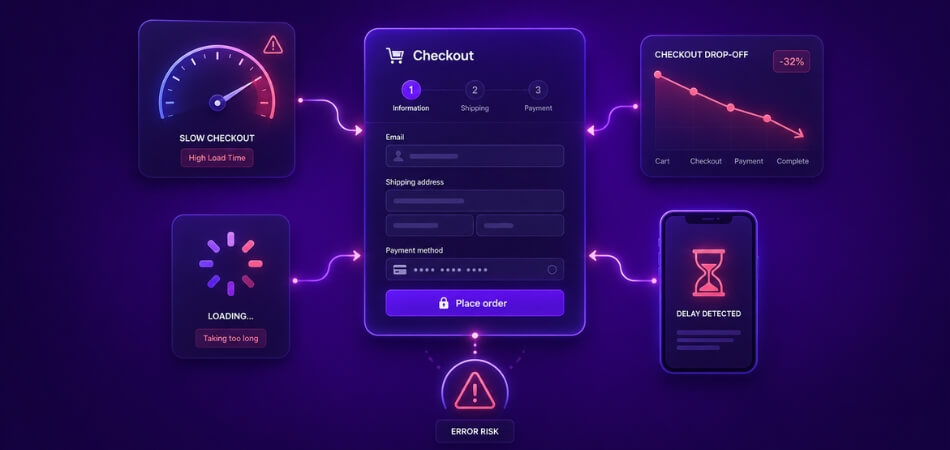
Look for these warning signs:
- Checkout page takes too long to load
- Order totals update slowly after shipping changes
- Coupon apply or remove action feels delayed
- Payment methods take time to appear
- Place order button stays loading for too long
- Mobile checkout feels slower than desktop
- Customers report failed payments or stuck checkout
- Form errors appear late or in the wrong place
- Thank-you page redirect takes too long
- Checkout abandonment increases after plugin or theme changes
What to Prepare Before Testing WooCommerce Checkout Performance
Before testing WooCommerce checkout performance, set up a test flow that behaves like a real customer journey. Checkout depends on cart sessions, product types, shipping zones, tax rules, coupons, payment gateways, customer accounts, and caching settings, so incomplete test data can lead to misleading results.
Prepare these first:
- Staging Site: Use a staging environment for risky checkout tests, plugin changes, payment gateway checks, and cache experiments before touching the live store.
- Real Product Types: Test with simple products, variable products, sale items, and products with shipping requirements so checkout behavior reflects real orders.
- Shipping and Tax Rules: Set up shipping zones, delivery rates, tax settings, and location-based rules before testing totals or checkout speed.
- Coupon Codes: Create test coupons for fixed discounts, percentage discounts, free shipping, and invalid coupon cases.
- Payment Test Mode: Enable sandbox or test mode for each payment gateway so you can test successful, failed, and retry payment flows safely.
- Guest and Logged-In Accounts: Test both user types because saved addresses, account data, coupons, and payment methods can change checkout behavior.
- Cache and Script Settings: Check checkout with caching, minification, defer, delay, CDN, and security settings enabled and disabled.
- Desktop and Mobile Devices: Test checkout on different screen sizes, browsers, and network conditions to catch device-specific performance issues.
Core WooCommerce Checkout Performance Metrics to Track
WooCommerce checkout performance is easier to improve when you know which numbers to watch. Instead of checking only a speed score, measure how quickly the checkout page loads, updates order details, responds to payment actions, and completes the order.
| Metric | What It Shows | Why It Matters |
| Checkout Load Time | How fast the checkout page opens | A slow first load can make buyers hesitate before payment |
| Time to Interactive | When fields, buttons, and payment sections become usable | Shows whether shoppers can start checkout without waiting |
| AJAX Update Time | How fast shipping, coupons, taxes, and totals refresh | Reveals delays in dynamic WooCommerce checkout updates |
| Payment Gateway Response | How fast payment options load and process | Slow gateways can make buyers think checkout is stuck |
| Order Placement Time | Time from clicking place order to reaching confirmation | Shows how quickly WooCommerce creates the order |
| Error Response Time | How fast field or payment errors appear | Helps shoppers fix problems without confusion |
| Mobile Completion Time | How long checkout takes on mobile devices | Shows whether the mobile checkout flow feels smooth |
| Failed Checkout Rate | How often checkout attempts fail | Helps detect gateway, validation, session, or plugin issues |
Tools You Can Use to Test WooCommerce Checkout Performance
Testing WooCommerce checkout performance requires more than one tool because checkout depends on frontend speed, backend response, AJAX updates, payment gateways, and customer behavior. Use a mix of speed, debugging, analytics, and payment testing tools for a complete view. Helpful tools include:
- Browser Developer Tools: Use the Network and Console tabs to check slow requests, JavaScript errors, failed AJAX calls, and checkout update timing.
- Lighthouse or PageSpeed Insights: Test checkout page speed, mobile usability, performance warnings, and frontend loading issues.
- GTmetrix or WebPageTest: Review waterfall charts to find slow scripts, payment gateway assets, tracking tags, fonts, and third-party requests.
- Query Monitor: Check slow database queries, PHP errors, hooks, template issues, and plugin-related delays inside WordPress.
- Payment Gateway Sandbox: Test successful payments, failed payments, declined cards, retries, and payment response behavior without real charges.
- Analytics or Funnel Tracking: Monitor checkout drop-offs, payment failures, device differences, and completion rates over time.
- Heatmap or Session Recording Tools: Watch how shoppers interact with fields, buttons, coupons, order summaries, and payment sections.
How to Test WooCommerce Checkout Performance?
Testing WooCommerce checkout performance means checking how fast and reliably each part of the buying flow works. A checkout page may load quickly at first, but it still slows down when coupons, shipping rates, payment gateways, validation, or order placement run in the background.
Test Checkout Page Load Time
Checkout load time shows how quickly the checkout page opens and becomes usable. Use tools like GTmetrix, WebPageTest, Lighthouse, or Browser Developer Tools to check the first load, large assets, blocking scripts, and third-party files.
Check for:
- Slow server response
- Heavy checkout scripts
- Large images or icons
- Payment gateway assets
- Tracking or chat widgets
- Delayed field and button loading
Test Dynamic Checkout Updates
Dynamic update speed shows how quickly WooCommerce refreshes shipping, tax, coupon, fee, and total changes. Use Browser Developer Tools to watch AJAX requests while changing checkout details.
Check for:
- Slow update_order_review requests
- Delayed coupon apply or remove actions
- Shipping methods updating slowly
- Tax or fee changes taking too long
- Totals not refreshing correctly
- Console errors during updates
Test Payment Gateway Response Time
Payment gateway response time shows how quickly payment options load and react during checkout. Test each gateway separately in sandbox or test mode, including cards, PayPal, wallets, BNPL, or local payment methods.
Check for:
- Payment fields loading late
- Gateway buttons not appearing
- Failed iframe or script requests
- Slow payment confirmation
- Delayed failed payment messages
- Gateway-specific JavaScript errors
Test Order Placement Speed
Order placement speed measures the time between clicking the place order button and reaching the thank-you page. Use payment sandbox mode and browser timing tools to check how quickly WooCommerce creates the order.
Check for:
- Long loading after place order
- Delayed thank-you page redirect
- Slow order creation
- Payment processing delay
- Duplicate order risk from repeated clicks
- Missing or delayed order emails
Test Form Validation and Error Handling
Validation performance shows how quickly checkout errors appear and whether shoppers can fix them without losing progress. Test missing fields, invalid email, invalid coupon, wrong postcode, and failed payment cases.
Check for:
- Errors appearing too late
- Vague or unclear error messages
- Errors shown far from the field
- Form data disappearing after errors
- Required fields not highlighted
- Failed payment retry flow
Test Mobile Checkout Performance
Mobile checkout performance shows how smoothly the checkout works on smaller screens and slower networks. Test on real phones when possible, not just desktop responsive preview.
Check for:
- Field spacing and tap targets
- Sticky buttons or order summary behavior
- Payment wallet loading
- Slow AJAX updates on mobile data
- Keyboard covering important fields
- Checkout flow in portrait and landscape mode
Test Cache and Script Optimization Behavior
Cache and script settings can make checkout faster or break dynamic checkout behavior. Test checkout with caching, minification, defer, delay, CDN, and security settings enabled.
Check for:
- Cached checkout totals
- Broken cart sessions
- Delayed WooCommerce checkout scripts
- Payment scripts blocked by optimization
- AJAX requests failing after cache changes
- Different behavior for guest and logged-in users
Test After Plugin, Theme, or WooCommerce Updates
Checkout performance can change after updates because the WooCommerce one page checkout plugin, themes, and WooCommerce templates affect checkout behavior. Repeat core tests after every major update.
Check for:
- Layout changes
- Broken payment fields
- Slower checkout scripts
- New JavaScript errors
- Shipping or coupon update issues
- Order placement delays
Quick Tip
Use the Network tab in your browser for each test. It helps you visually compare load times when trying different techniques to speed up WooCommerce checkout without guessing.
- Press F12
- Open Network
- Reload the page
- Compare total load times
This helps you clearly see what changes make the checkout faster.
Testing WooCommerce Checkout on Mobile vs Desktop: What’s Different?
WooCommerce checkout can behave differently on mobile and desktop, so testing only one device type can hide important problems. A checkout page may load well on a desktop but feel slow, crowded, or harder to complete on a phone. Compare both experiences to find layout, speed, input, and payment issues before they affect real orders.
| Aspect | Mobile Checkout | Desktop Checkout |
| Screen Space | Less room for fields, order summary, coupons, and payment options | More room to show fields, totals, and payment details together |
| Typing Experience | Touch keyboards can slow input and cover fields | Physical keyboards make longer forms easier to complete |
| Load Speed | Can feel slower on weak networks or older devices | Usually handles large scripts and assets more smoothly |
| Layout Fit | Needs single-column structure, spacing, and clear tap targets | Can support wider layouts without feeling crowded |
| Button Interaction | Buttons need larger tap areas to prevent mistakes | Mouse clicks are more precise, so smaller controls are easier |
| Payment Flow | Mobile wallets can speed checkout, but must be tested carefully | Card fields, PayPal, and other methods may feel more stable |
| Popups and Scripts | Heavy scripts can freeze or delay the checkout experience | Desktops usually tolerate heavier scripts better |
| User Attention | Shoppers may leave faster if checkout feels slow or cramped | Users may tolerate more steps, but delays still hurt completion |
How Often Should You Test WooCommerce Checkout Performance?
Testing your WooCommerce checkout should happen regularly, not only when problems appear. Small changes over time can quietly slow things down. Checking performance often helps you catch issues early before customers start leaving.
Many store owners test checkout performance once every month as a safe habit. This schedule helps track speed changes caused by plugins, updates, or traffic growth. Regular checks also make it easier to compare results and notice slowdowns quickly.
Extra testing is needed after updates, sales events, or adding new features. Big traffic days can reveal issues that normal days hide. Frequent testing keeps your checkout fast, smooth, and ready for real customers.
Is It Worth Using a Lightweight Checkout Plugin to Maintain Checkout Performance?
Using a lightweight checkout plugin is worth considering when your WooCommerce checkout feels slow, crowded, or harder than it needs to be. A simpler checkout setup can reduce extra steps, keep the buying flow focused, and help shoppers move from cart to payment with fewer interruptions.
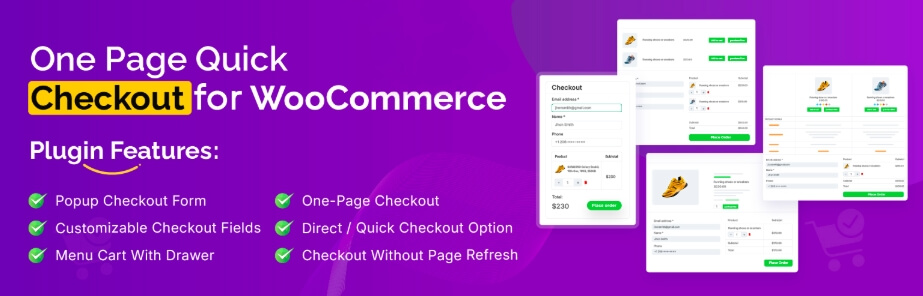
That’s why many store owners use One Page Checkout WooCommerce since it supports a faster checkout experience. This is especially useful for stores that want a cleaner flow without rebuilding the entire checkout process.
After setting it up, review these areas to get the best results:
- Page Speed: Check whether the checkout page loads smoothly on desktop and mobile.
- Checkout Flow: Make sure shoppers can review products, enter details, and move to payment without unnecessary steps.
- Mobile Experience: Confirm that fields, buttons, and payment options are easy to use on smaller screens.
- Payment Process: Test card payments, wallets, PayPal, and failed payment retries to make sure the flow stays smooth.
- Order Completion: Place test orders and confirm the thank-you page, order emails, and admin order records work properly.
- Customer Journey: Compare checkout drop-offs before and after setup to see whether the buying path feels easier.
Performance Comparison Before and After Checkout Optimization—The Best Way to Do It
Testing before and after changes helps you know if your fixes really work. It’s not enough to guess what made things better. You need real numbers to prove checkout speed and success improved. Read below to learn simple ways to compare performance with real data.
A/B Testing Two Checkout Versions
Try showing two checkout versions to different users at the same time. This lets you see which one gets more people to buy. Keep everything else the same so only the layout or features change. This helps you clearly measure what actually makes a difference. Even small design changes can increase sales.
Use Funnel Analytics To Track Drop-Offs
Funnel tools let you track users at each step, like cart, shipping, and payment. You can see where they leave and where they finish. This helps you find which part needed a fix and if that fix worked. After the changes, compare the same steps again. You’ll know if the update really helped or not.
Check Time-To-Conversion Before And After
This shows how long people take to finish checkout and helps you understand checkout speed impact on WooCommerce conversion rates in a simple way. If changes are made to speed up the process, the average time will drop. Less waiting means users are happier and more likely to complete orders. Track these numbers before and after making updates. It’s a great way to see if things have gotten smoother.
Compare Mobile And Desktop Results
See if changes helped mobile users more than desktop users. Mobile checkout often needs special fixes like bigger buttons or fewer steps. Look at completion rates on both devices before and after updates. If mobile rates go up, your change worked well. Test both to make sure no group is left behind.
Track Each Change With Clear Metrics
Don’t guess which change helped the most. Use clear data to match each update to a result. That might be more orders, faster load times, or fewer abandoned carts. Keep notes on what you changed and when. That way, your next round of updates is based on real results, not guesses.
Frequently Asked Questions
The following FAQs are designed to address additional user queries, improve clarity, and cover important aspects not discussed above, helping readers better understand WooCommerce checkout performance and related factors.
Can Checkout Performance Affect WooCommerce Order Completion?
Yes. Checkout performance can affect order completion because shoppers may leave when payment fields load slowly, totals take too long to update, or the place order button feels stuck. A reliable checkout helps customers finish payment with fewer delays.
How Do I Know If A Checkout Issue Comes From Hosting Or A Plugin?
Compare checkout behavior on a staging site by disabling plugins one by one and checking server response time with tools like Query Monitor or browser Network logs. Hosting issues usually affect backend response, while plugin issues often add scripts, errors, or slow checkout actions.
Why Do Payment Fields Load Slower Than Other Checkout Elements?
Payment fields often depend on external gateway scripts, fraud checks, hosted card fields, wallet buttons, or iframe loading. These third-party requests can load separately from the main checkout page and may respond slower than standard form fields.
Should I Test WooCommerce Checkout During High-Traffic Periods?
Yes, but use safe monitoring instead of risky live changes. High-traffic periods can reveal server limits, payment gateway delays, cart session issues, and checkout queue problems that may not appear during low-traffic testing.
Can Checkout Tracking Scripts Slow Down WooCommerce Performance?
Yes. Analytics tags, ad pixels, heatmaps, live chat tools, and session recording scripts can add extra requests to checkout. Keep only essential tracking scripts on checkout and test whether each one affects load time or payment behavior.
Why Should Guest And Logged-In Checkout Be Tested Separately?
Guest and logged-in checkout can behave differently because logged-in users may have saved addresses, saved payment methods, account data, membership rules, or previous coupon use. Testing both flows helps catch issues that only affect one customer type.
What Is The Difference Between Checkout Load Time And Order Placement Time?
Checkout load time measures how fast the checkout page becomes usable. Order placement time measures how long WooCommerce takes after the customer clicks the place order button, including validation, payment processing, order creation, and thank-you page redirect.
Can A Fast Checkout Still Have Performance Problems?
Yes. A checkout page may load quickly but still have slow coupon updates, delayed payment fields, broken AJAX requests, failed validation, or long order placement time. That is why full checkout flow testing is more useful than a single speed score.
Concluding Words
Not everything that slows down your checkout is easy to spot. That’s why knowing how to test WooCommerce checkout performance the right way can save you lost sales and frustrated customers.
Simple tools and smart methods give you clear answers instead of guesswork. Whether you’re checking speed, tracking drop-offs, or comparing devices, testing often leads to better results. Keep your checkout running fast, clean, and smooth—your customers will thank you with more completed orders.