

Checkout optimization in WooCommerce means reducing form friction, showing costs clearly, offering trusted payment options, and testing the full order flow. Small issues like long billing fields, surprise shipping fees, unclear totals, slow payment loading, or weak security cues can make shoppers pause even after they have added products to the cart.
WooCommerce checkout optimization focuses on making the final step clear, fast, and trustworthy. In this guide, you’ll learn how to improve checkout fields, guest checkout, order summary, shipping details, payment gateways, trust badges, mobile checkout UX, error messages, and page speed so more customers can complete their orders with confidence.
Quick Tips for WooCommerce Checkout Conversion Optimization
Checkout pages convert better when buyers can complete payment with fewer steps and less confusion. Keep the page simple, show the total cost clearly, and make the final action easy on both desktop and mobile. Start with these quick wins before making deeper checkout changes.
- Use only essential checkout fields
- Enable guest checkout
- Show shipping, tax, and total cost clearly
- Keep the order summary easy to review
- Offer trusted payment options
- Test the full checkout flow
What Makes a WooCommerce Checkout Page Convert Better?
WooCommerce checkout pages convert better when shoppers can complete the order quickly, understand the final cost, and trust the payment process. A strong checkout page removes unnecessary steps and keeps the buyer focused from billing details to the place order button.
Here are the main elements to focus on:
- Short and clear checkout fields
- Guest checkout for new customers
- Easy-to-scan order summary
- Clear shipping, tax, discount, and total cost
- Trusted payment methods
- Security, refund, and delivery reassurance
- Mobile-friendly checkout layout
- Fast loading and smooth error handling
How to Optimize WooCommerce Checkout Page for Conversions?
Improving checkout conversion is not about changing everything at once. It is about removing the small points of friction that make shoppers slow down, second-guess the order, or leave before payment. Follow these steps to optimize WooCommerce checkout page for Conversions
Simplify the WooCommerce Checkout Form
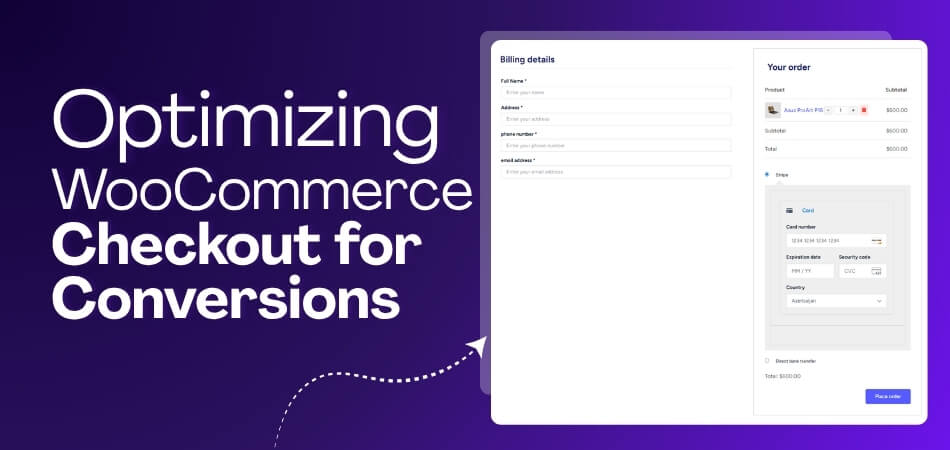
Long checkout forms can make the buying process feel harder than it should. Keep only the fields needed for billing, shipping, payment, and order fulfillment. Clear labels, logical field order, and fewer required inputs help shoppers complete checkout faster.
Offer Guest Checkout and Easy Account Creation
Forced account creation can interrupt first-time buyers when they are ready to pay. Allow guest checkout so customers can place orders quickly. Then offer optional account creation after purchase for order tracking, saved details, or faster future checkout.
Make Costs Clear Before Payment
Unexpected costs are one of the biggest reasons shoppers abandon checkout. Show shipping fees, taxes, discounts, and the final total before payment. Clear pricing helps buyers feel informed and reduces hesitation near the place order button.
Improve the Order Summary
A clear order summary helps shoppers confirm they are buying the right products. Show product names, quantities, prices, discounts, shipping, and final total in one easy-to-scan area. Product thumbnails can also help visual stores reduce uncertainty.
Add Trust Signals Near Checkout Actions
Shoppers need reassurance before entering payment details. Add trust signals near the payment area, such as secure checkout text, accepted payment logos, refund policy links, delivery notes, or support contact details. Keep them helpful without overcrowding the checkout page.
Offer the Right Payment Options
Payment choice can directly affect checkout completion. Offer familiar options such as credit cards, debit cards, PayPal, digital wallets, or local payment methods based on your customers’ location. Avoid adding too many choices that make payment selection feel confusing.
Optimize Checkout for Mobile Users
Many shoppers complete checkout on phones, so the page must feel easy on smaller screens. Use a single-column layout, large tap-friendly buttons, readable labels, and enough spacing between fields. Mobile wallets can also reduce typing effort.
Speed Up the WooCommerce Checkout Page
Slow checkout pages create doubt right before payment. Remove scripts that are not needed on checkout, avoid heavy design elements, and test payment gateway loading. Keep cart and checkout pages dynamic so customer and order data stay accurate.
Reduce Distractions on the Checkout Page
Checkout should keep buyers focused on completing the order. Remove sidebars, large banners, unnecessary navigation links, aggressive popups, and too many upsells. A clean page makes the next step obvious and keeps attention on payment.
Improve Checkout Error Handling
Confusing errors can frustrate shoppers after they have already filled out the form. Show error messages near the exact field that needs attention. Use simple language, highlight required fields clearly, and avoid clearing entered information after validation fails.
Personalize Checkout Based on Store Type
Different WooCommerce stores need different checkout details. Digital stores can remove shipping fields, fashion stores may show size and return details, local stores need pickup options, and B2B stores may require company, tax, or purchase order fields.
Track Checkout Performance and Test Changes
Checkout improvements should be measured instead of guessed. Track checkout drop-offs, payment failures, field errors, coupon issues, and mobile behavior. Test changes one at a time so you can see what actually improves conversion rates.
Default WooCommerce Checkout vs Conversion-Focused Checkout
The default WooCommerce checkout is built to collect billing, shipping, and payment details, but it is not always optimized for the fastest buying experience. A conversion-focused checkout reduces friction, shows key order details clearly, supports faster payment, and helps shoppers complete the purchase with fewer distractions.
| Area | Default WooCommerce Checkout | Conversion-Focused Checkout |
| Checkout Flow | Standard cart-to-checkout process | Shorter flow with fewer steps |
| Form Fields | Uses default billing and shipping fields | Keeps only essential fields |
| Guest Checkout | Depends on store settings | Clearly supports fast guest checkout |
| Order Summary | Basic order review section | Easy-to-scan summary with clear totals |
| Cost Visibility | Shipping, taxes, and fees may appear later | Shows costs clearly before payment |
| Payment Options | Depends on installed gateways | Prioritizes trusted and relevant methods |
| Mobile Experience | Works with the theme layout | Designed for smoother mobile completion |
| Trust Signals | Usually limited by theme or setup | Places reassurance near payment actions |
| Distractions | May include header, footer, or extra links | Keeps focus on completing the order |
| Testing Focus | Basic order placement | Tests fields, payment, coupons, errors, and mobile flow |
How One Page Quick Checkout for WooCommerce Improves Checkout Conversions
Reducing extra steps between product selection and payment can make checkout feel faster and easier to complete. With One Page Quick Checkout for WooCommerce, shoppers can move through the buying flow with fewer page jumps and less hesitation before placing an order. It supports a conversion-focused checkout in these ways:
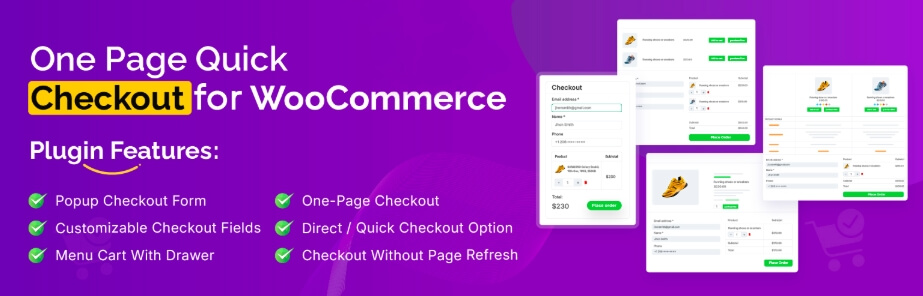
- Reduces Extra Checkout Steps: Shoppers can move from product interest to payment faster without going through too many separate cart and checkout pages.
- Creates a Shorter Buying Flow: Using One Page Checkout for WooCommerce keeps key purchase actions closer together, making the checkout journey feel quicker and easier.
- Keeps Buyers Focused: A simpler checkout path reduces distractions and helps customers stay focused on reviewing the order and completing payment.
- Improves Mobile Checkout: Fewer page loads and fewer steps make the checkout process easier for mobile shoppers using smaller screens.
- Supports Faster Purchase Decisions: Quick checkout options help ready-to-buy customers place orders without slowing down through a long default checkout journey.
- Reduces Checkout Friction: A smoother flow can lower hesitation caused by repeated clicks, page jumps, or disconnected cart-to-checkout steps.
Common Mistakes That Kill Checkout Conversions
Checkout conversions usually drop when the final buying step feels too long, unclear, slow, or risky. Many of the same mistakes are also factors that slow down WooCommerce checkout, such as extra fields, plugin conflicts, poor mobile layout, hidden costs, and incorrect caching.
Here are the common mistakes to check and how to avoid each one:
Asking for Too Many Fields
Long checkout forms make the process feel harder than it needs to be. When shoppers see too many billing, shipping, or optional fields, they may slow down or leave before placing the order.
How to avoid it:
- Remove fields that are not needed for billing, shipping, or fulfillment
- Keep required fields clearly marked
- Group contact, billing, shipping, and payment fields logically
Hiding Shipping Costs Until Late
Unexpected shipping fees, taxes, or extra charges can make buyers lose trust near the final step. Cost surprises are especially harmful because shoppers are already close to payment.
How to avoid it:
- Show shipping fees, taxes, discounts, and final total clearly
- Display available shipping methods before payment
- Avoid adding hidden handling or service charges late in checkout
Forcing Account Creation
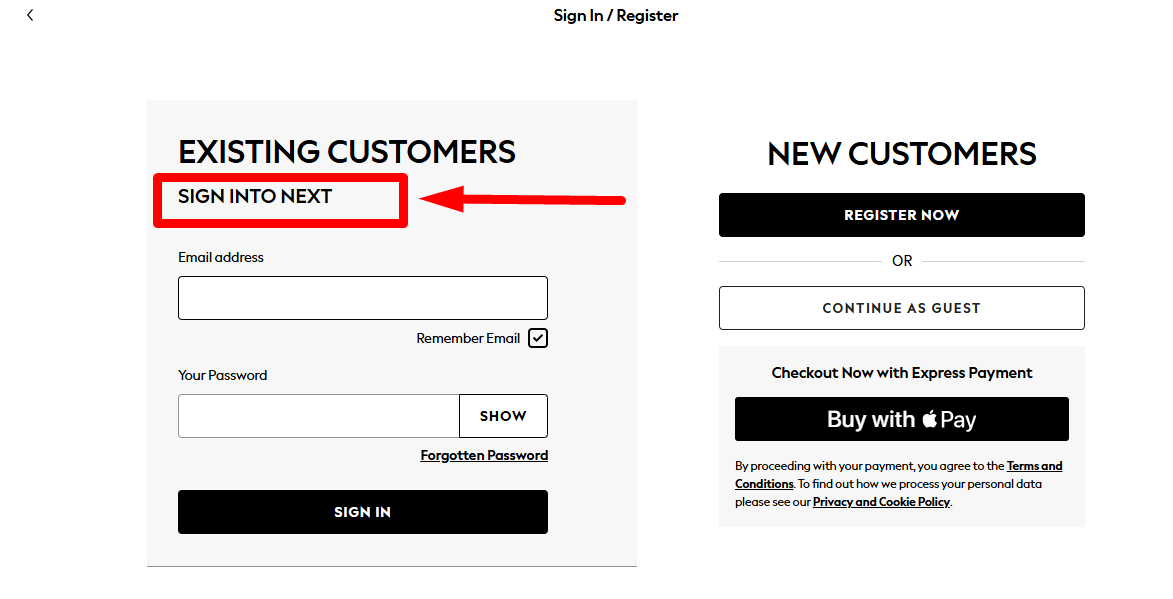
Mandatory account creation can interrupt first-time buyers who simply want to complete the purchase. Extra login or registration steps add friction before payment.
How to avoid it:
- Enable guest checkout
- Offer account creation after the order is placed
- Explain account benefits without making registration required
Using Too Many Checkout Plugins
Too many checkout plugins can slow the page, create layout conflicts, or break payment behavior. Problems often happen when multiple tools control fields, buttons, redirects, or checkout design.
How to avoid it:
- Keep only the checkout plugins you actually need
- Avoid overlapping plugins that control the same checkout area
- Test checkout after plugin updates or new installations
Adding Distractions Near Payment
Checkout pages lose focus when they include sidebars, popups, large banners, or too many upsells. These elements can pull shoppers away from the final order action.
How to avoid it:
- Remove unnecessary navigation links and sidebars
- Keep upsells minimal and relevant
- Make the place order button the main action on the page
Ignoring Mobile Checkout Issues
Mobile shoppers may abandon checkout if fields feel cramped, buttons are hard to tap, or the order summary is difficult to review. A desktop-friendly checkout is not always mobile-friendly.
How to avoid it:
- Use a single-column mobile layout
- Make buttons large enough to tap easily
- Test the full checkout flow on real mobile devices
Showing Weak Error Messages
Vague checkout errors make shoppers unsure about what went wrong. If users have to search for the problem or re-enter details, they may leave.
How to avoid it:
- Show errors near the field that needs attention
- Use simple, specific error messages
- Preserve entered information after validation fails
Caching Checkout Incorrectly
WooCommerce checkout needs live cart, customer, shipping, and payment data. Incorrect caching can show stale totals, break sessions, or stop payment and order data from updating properly.
How to avoid it:
- Exclude cart, checkout, and account pages from full-page caching
- Avoid delaying important WooCommerce checkout scripts
- Test checkout with caching enabled before going live
WooCommerce Checkout Optimization Final Checklist
Before publishing checkout changes, test the full buying flow from cart to order confirmation. Small issues with fields, payment gateways, mobile layout, caching, or page loading can affect trust and completion rates, so always review the checkout speed impact on WooCommerce conversions along with the overall checkout experience.
Use this final checklist before making changes live:
- Checkout fields are short, clear, and necessary
- Guest checkout is enabled for first-time buyers
- Shipping, tax, discounts, and final total are shown clearly
- Order summary is easy to scan before payment
- Checkout button is visible and easy to tap
- Payment gateways work without errors
- Trust signals appear near the payment area
- Mobile checkout layout is clean and responsive
- Checkout page loads quickly on desktop and mobile
- Error messages are clear and placed near the right fields
- Cart, checkout, and account pages are not incorrectly cached
- Coupons, shipping methods, taxes, and order emails are tested
- Guest and logged-in checkout flows work properly
- Failed payment and retry flows are tested before launch
Frequently Asked Questions
Before finishing checkout optimization, many store owners still have a few practical doubts. These questions come up often after implementation and testing, so answering them helps complete the picture.
Can Checkout Optimization Affect SEO Indirectly?
Yes, checkout optimization can indirectly support SEO by improving user behavior. Faster checkout reduces bounce-back actions and session frustration. Better engagement signals help overall site performance and long-term search visibility.
Should Checkout Optimization Be Tested on Staging First?
Testing on a staging site is strongly recommended before going live. It helps catch payment issues, form errors, and plugin conflicts early. This approach protects live sales while allowing safe experimentation.
How Long Does It Take to See Conversion Improvements?
Small improvements can appear within days after changes go live. Larger gains usually show after one to two weeks of consistent data tracking. Results depend on traffic volume and checkout complexity.
Does Checkout Optimization Require Custom Coding?
Not always. Many improvements can be made using settings, plugins, and layout adjustments. Custom coding is only needed for advanced logic or highly customized checkout behavior.
Can Checkout Optimization Help With Repeat Customers?
Yes, a smooth checkout improves memory and trust. Returning buyers are more likely to complete purchases quickly. Over time, this builds loyalty and increases lifetime customer value.
Concluding Words
Optimizing checkout is about fixing small issues that quietly block sales. When forms are simpler, pages load faster, and errors are clear, buyers feel confident completing their purchase without second thoughts or frustration.
If you focus on how to optimize WooCommerce checkout page for conversions, you turn existing traffic into real revenue. A smoother checkout helps buyers pay faster, trust your store more, and come back again.