

Single-product direct checkout in WooCommerce shortens the path between interest and payment by sending shoppers into a more immediate buying flow. For featured items, promotional offers, and focused landing pages, that simpler path can reduce friction and keep attention on completing the purchase instead of moving through extra store steps.
This guide covers everything on how to set up direct checkout for single products in WooCommerce, where it fits best, and what to verify so the experience stays smooth across both desktop and mobile.
Quick Set Up Tips
Use these quick steps to set up single-product direct checkout in WooCommerce without changing the normal purchase flow for the rest of your store.
- Choose the single product that should use direct checkout
- Enable direct checkout or checkout redirect for that product
- Send the product straight to checkout after add to cart
- Keep the rule limited to that product, not the full store
- Test product add, redirect, quantity update, and checkout total
- Remove unnecessary checkout fields before going live
What Is Direct Checkout for a Single Product in WooCommerce?
Direct checkout for a single product in WooCommerce sends shoppers from that product straight into checkout instead of moving them through the standard cart page first. It is used to shorten the buying process for a specific item and create a faster path to purchase.
- Works by skipping the normal cart step for one selected product
- Sends the customer to checkout right after the product is added
- Keeps the purchase flow more focused for single-item sales
- Helps reduce extra clicks between product selection and payment
- Fits featured products, promotions, landing pages, and simple offers
- Can be applied to one product without changing the full store checkout flow
Why Set Up Direct Checkout for Single Products?
Single-product sales often perform better when the path between product selection and payment feels short and uninterrupted. Removing the extra cart step can make checkout more immediate, especially for featured offers and focused purchase journeys. That is where the direct checkout effect on WooCommerce user experience becomes more visible.
Here’s why you need to set up direct checkout for angle products in your store:
- Fewer Purchase Steps: Customers move from the product directly to checkout instead of stopping at the cart first.
- Less Checkout Friction: Removing an extra page can make the buying process feel faster and simpler.
- Stronger Product Focus: Shoppers stay centered on one item instead of being pulled into broader cart browsing.
- Better Fit For Promotions: Works well for featured products, ads, landing pages, and limited-time campaigns.
- Cleaner Mobile Experience: A shorter path is often easier to complete on smaller screens.
- More Control Over Selected Products: You can speed up checkout for one item without changing the full store flow.
What You Need Before Setting It Up
Before enabling direct checkout for a single product, make sure the basic WooCommerce setup is already working properly. A stable product, checkout page, and payment setup will make the direct checkout flow easier to configure and test.
- Published Single Product: Choose the exact product that will use the direct checkout path.
- Working WooCommerce Checkout Page: Confirm the default checkout page is active and loading correctly.
- Active Payment Method: Make sure at least one payment gateway is enabled and ready to accept orders.
- Product Price And Settings: Review the product price, stock status, and purchase options before redirecting buyers.
- Shipping Setup If Needed: Check shipping zones, methods, and costs for physical products.
- Direct Checkout Method: Decide whether you will use a plugin, redirect rule, or custom setup.
- Mobile-Friendly Checkout Layout: Review the checkout page on mobile so the shorter flow still feels usable.
- Cache And Plugin Compatibility Check: Clear caching and confirm no theme or plugin conflict blocks the redirect flow.
Direct Checkout With WooCommerce’s Default
WooCommerce includes a default add-to-cart behavior setting that can send customers to the cart page after they add a product. This does not create true direct checkout, but it can reduce one step in the standard purchase flow and works as a simple built-in alternative for stores that want a quicker path without extra customization.
What It Does
- Redirects customers to the cart page right after a product is added
- Uses a built-in WooCommerce setting, so no extra plugin is required
- Applies at the store level rather than as a true single-product direct checkout rule
- Shortens the path slightly for stores that want faster cart access
Its Limitation
- It sends users to cart, not directly to checkout.
- It is not a real single-product direct checkout setup
- It does not give product-specific control by default
- It still keeps the cart step in the buying journey
- Stores that want a product to go straight from add to cart to checkout usually need a plugin, custom logic, or a URL-based checkout flow.
How to Set Up Direct Checkout for Single Products in WooCommerce?
You can set up direct checkout in a few easy ways. Below is a clear explanation of each method so you can pick the one that fits your store.
Method 1. Use a Direct Checkout Link for One Product
You can create a link that sends users straight to checkout for a single product.
Format:
https://yourwebsite.com/checkout/?add-to-cart=PRODUCTID
To find the product ID:
- Go to Products.
- Hover over the product name.
- You will see the ID under the title.

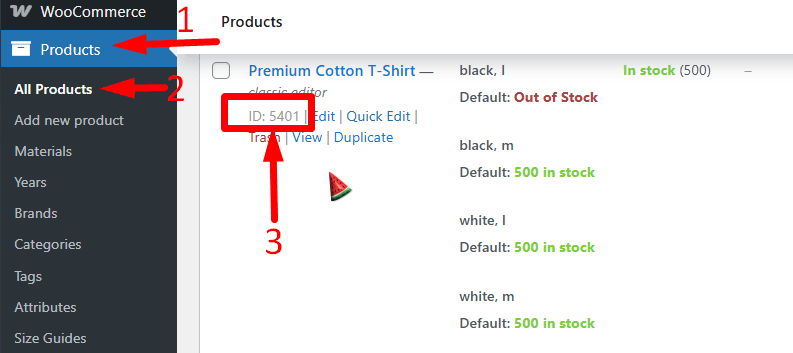
Use this link on buttons or banners.
Method 2. Use a Plugin for Easy Setup
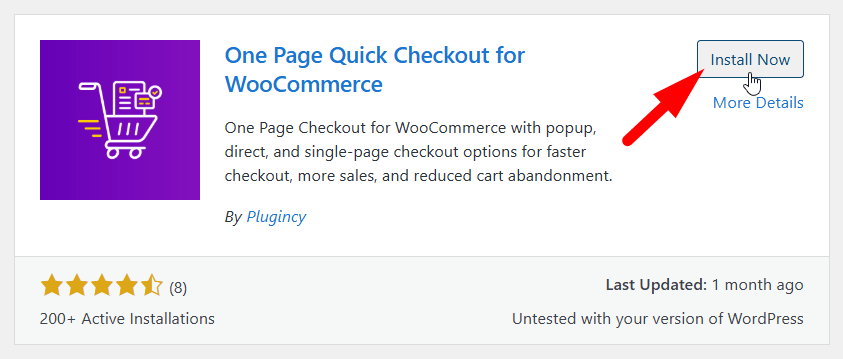
If you want a simple and flexible method, a plugin can make the process easier. One popular option is One Page Quick Checkout for WooCommerce, a WooCommerce checkout plugin that supports direct checkout and lets you skip the cart page.
Step 1: Install and Activate the Plugin
Free Version:
- Go to WordPress Dashboard > Plugins > Add New
- Search: One Page Quick Checkout for WooCommerce

- Click Install Now
- Click Activate
Pro Version:
- Buy the Pro plugin from the official website
- Download the ZIP file
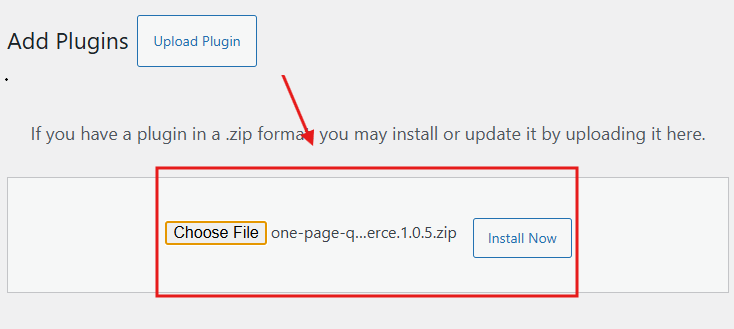
- Go to Plugins > Add New > Upload Plugin
- Upload the ZIP
- Click Install Now, then Activate

- Enter the License Key in the plugin settings
Manual FTP Install:
- Download and extract the ZIP file
- Upload the folder to /wp-content/plugins/
- Go to Plugins in WP admin and click Activate
Step 2: Enable Direct Checkout in Plugin Settings
- Log in to your WordPress dashboard
- Go to Onpage Checkout in the sidebar
- Click Direct Checkout Manage
- Toggle the switch to turn on Direct Checkout
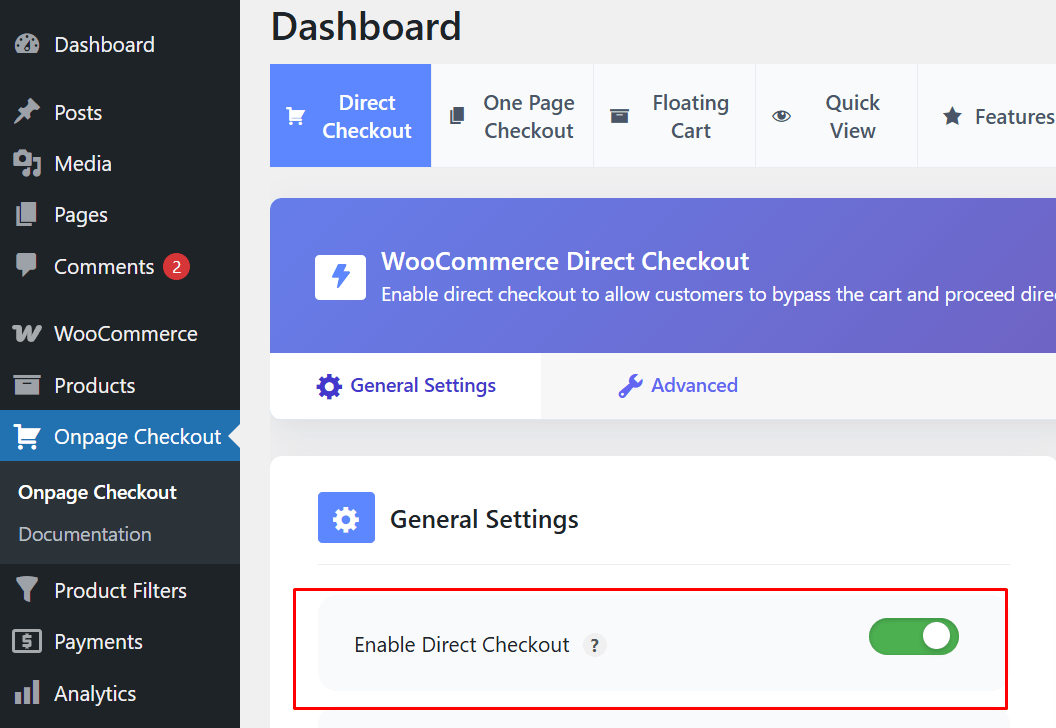
After turning it on:
- Go to Display Settings
- Select Simple and Variable products
- Choose Single Product Pages
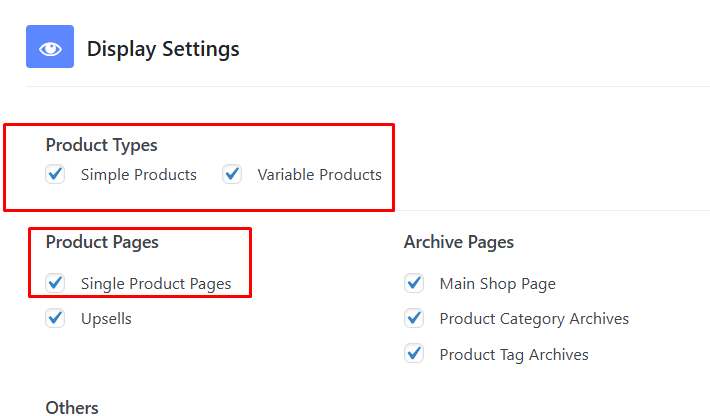
This is how to set up direct checkout for single products in WooCommerce. Try it out and see how it improves your store’s shopping experience.
Method 3. Add the Code to Your Theme (Only use if you know your theme files)
Use this method only if you are comfortable editing theme files.
Steps:
- Go to Appearance
- Click Theme File Editor
- Find functions.php on the right
- Open it
- Scroll to the bottom
- Paste your chosen code

- Save the file
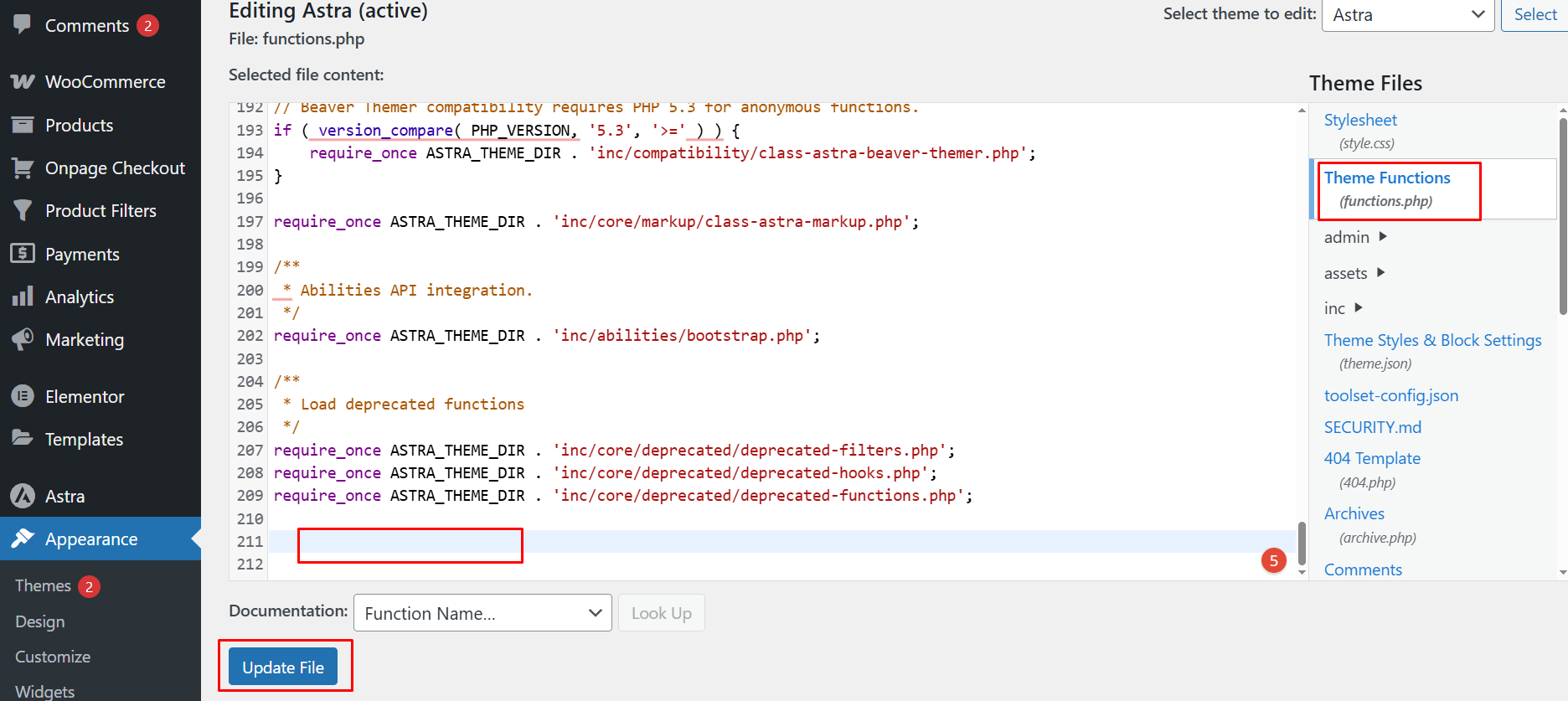
Note: If you change themes, you will need to add the code again.
Code Option A: Direct Checkout for All Products
add_filter(‘add_to_cart_redirect’, ‘custom_redirect_to_checkout’);
function custom_redirect_to_checkout() {
return wc_get_checkout_url();
}
Code Option B: Direct Checkout for One Selected Product
add_filter(‘add_to_cart_redirect’, ‘custom_single_product_direct_checkout’);
function custom_single_product_direct_checkout() {
if ( isset($_REQUEST[‘add-to-cart’]) ) {
$product_id = intval($_REQUEST[‘add-to-cart’]);
// Add your product ID here
if ( $product_id == 123 ) {
return wc_get_checkout_url();
}
}
return wc_get_cart_url();
}
Replace 123 with your product ID.
This setup:
- Sends only that product to checkout
- Keeps all other products working normally
Best Method to Choose
| Method | When It’s a Good Choice | Pros | Cons |
| Direct Checkout Link | You want direct checkout for one specific product | Simple link, works anywhere on your site | You must create a link for each product |
| Plugin Method (One Page Quick Checkout) | You want an easy, flexible setup with features like Buy Now buttons | No coding needed, many customization options | The plugin adds extra load to the site |
| Add Code to Theme | You want full control and lightweight performance | No plugin required, very flexible | Requires coding knowledge and must be re-added after theme changes |
Troubleshooting: When Direct Checkout Doesn’t Work
If direct checkout is not working as expected, here are a few things you can check and fix easily:
1. Plugin Conflicts
If you’re using a checkout plugin, other plugins may interfere with it.
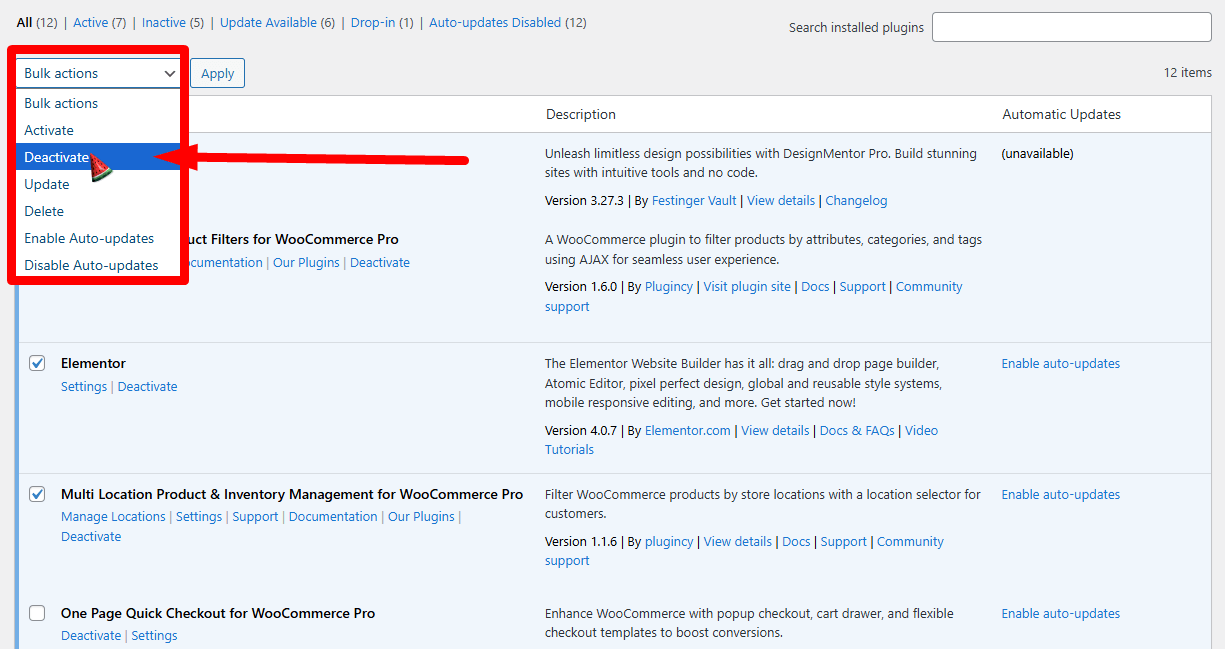
What to do:
- Disable unnecessary plugins except the WooCommerce One Page Checkout plugin.
- Check if direct checkout works.
- If it does, enable plugins one by one to find the one causing issues.
2. Caching Issues
Sometimes, caching plugins or server-side caching can stop updates from showing.
What to do:
- Clear your site cache and browser cache.
- If you’re using a caching plugin, clear that too.
- If you’re using a CDN (like Cloudflare), purge the cache there as well.
3. Theme Conflicts
Some themes may override WooCommerce behavior and affect direct checkout.
What to do:
- Temporarily switch to a default theme like Storefront or Twenty Twenty-Three.
- Test if direct checkout works.
- If it does, your main theme may need adjustment.
4. Wrong Product ID in Custom Code
If you’ve added a code snippet for one specific product, double-check the product ID.
What to do:
- Go to Products, hover over the product name, and confirm the ID.
- Make sure the ID in the code matches the real product.
5. JavaScript or Button Issues
Sometimes, custom buttons or JavaScript on the product page block the redirect.
What to do:
- Test using the default Add to Cart button.
- Remove or disable custom scripts temporarily and see if it fixes the issue.
6. Plugin Settings Not Saved
If you’re using a plugin like One Page Quick Checkout, make sure settings are turned on properly.
What to do:
- Go to the plugin settings.
- Make sure Direct Checkout is enabled.
- Double-check display settings for product types and pages.
Practical Use Cases: Who Benefits Most From Single-Product Direct Checkout
Single-product direct checkout works best when shoppers are expected to buy one item quickly without moving through extra store pages. It is especially useful for offers, campaigns, and product pages where a shorter path to payment can support faster decisions and fewer drop-offs.
- Clothing Brands With One Featured Item: Best for stores promoting one main product, such as a hoodie, t-shirt, or limited drop, where keeping attention on a single purchase matters most.
- Digital Product Sellers: Ideal for eBooks, templates, software, and courses where buyers usually want immediate access without an extra cart step.
- Dropshipping Stores With Viral Products: Useful for impulse-driven products where a faster path to payment helps preserve buying momentum.
- Single-Service Bookings: Fits businesses selling one service, such as a consultation, class, or appointment, where customers only need to choose and pay.
- Niche Product Sites: Works well for stores built around one core product, where most visitors arrive with a specific purchase intent.
- Social Media Ad Landing Pages: Strong for paid traffic campaigns, where reducing steps between click and checkout can improve conversion.
How to Make Your Direct Checkout Load Faster: Best Practices
Direct checkout works best when the page loads quickly and moves shoppers into payment without delay. Faster performance can reduce friction, support mobile usability, and help more buyers complete the checkout process.
- Keep Images Light: Compress product and checkout-related images so the page loads faster without adding unnecessary file weight. Smaller image sizes help the checkout open more smoothly across desktop and mobile devices.
- Use Fast Hosting: Choose hosting that can handle WooCommerce traffic efficiently, especially during promotions or peak sales periods. Faster servers help reduce page load time and keep checkout performance more stable.
- Limit Extra Plugins: Remove unused plugins and avoid adding tools that load unnecessary scripts on the checkout page. A leaner plugin setup reduces code bloat and helps direct checkout run more smoothly.
- Cache The Right Pages Carefully: Use caching for pages that benefit from faster delivery, but make sure checkout-related behavior still works properly. Poor caching setup can interfere with cart and checkout actions instead of improving them.
- Use A Simple Layout: Keep the direct checkout page clean, focused, and free from heavy design elements. A simpler layout usually loads faster and helps shoppers move through the page with less distraction.
- Cut Unneeded Scripts: Disable scripts that are not required for product selection, cart behavior, or payment. Fewer active scripts reduce browser load and can improve checkout speed and stability.
- Choose A Lightweight Plugin: Pick a direct checkout plugin that adds only the features you actually need. It is also worth comparing the cost of WooCommerce direct checkout plugins alongside performance, because heavier plugins may add both extra expense and extra load time.
- Test Speed After Every Change: Check how the direct checkout page performs after adding plugins, scripts, or design changes. Regular testing helps you catch speed issues before they affect the buying experience.
Frequently Asked Questions
These questions cover extra things people often want to know. Each one gives simple steps or ideas that help explain the setup better. They also make it easier to understand how direct checkout works in real use.
What Happens If Buyers Want To Add More Items Later?
Buyers can still browse and add more items if your store allows it. Direct checkout will only trigger when they click the special setup you made. They can return to the shop at any time to keep shopping.
Why Should I Test Direct Checkout Before Using It Live?
Testing helps you see how the flow feels for real users. It also lets you fix small problems before buyers see them. A short test can prevent many checkout issues.
Where Can I See If Direct Checkout Improves Sales?
You can check your store reports to compare before and after. Look at how many orders are completed with the faster path. These numbers show if the change helped your store.
How Does Direct Checkout Work With Coupons?
Coupons still work in most setups. Buyers can enter a coupon on the checkout page as usual. This keeps discounts simple and easy to use.
Who Should Avoid Using Direct Checkout?
Stores with many product options may not benefit much. Buyers might need time to compare items or read details. In such cases, a full cart flow works better.
What If My Payment Page Feels Too Long?
You can remove extra fields to make it shorter. Many fields are not needed for simple orders. A short form helps buyers finish faster.
How Do I Tell Buyers About The Faster Checkout?
You can add a small note on the product page. A short message helps them know what to expect. This builds trust and keeps them from feeling surprised.
What If My Buyers Use Many Payment Methods?
Direct checkout still works with most payment options. They can pick the one they like on the checkout page. This keeps the process easy for everyone.
How Can I Test Direct Checkout On Mobile?
Open your site on a phone and try buying your product. Check how fast the page loads and how easy the buttons feel. This helps you spot small issues early.
Conclusion
Setting up direct checkout can change how people shop on your store. It removes extra steps, saves time, and helps buyers finish faster. When selling one product, a clean and quick checkout often leads to better results. Small tweaks like plugins, links, or settings can make a big difference.
Once you understand how to set up direct checkout for single products in WooCommerce, it becomes easier to choose the right method. Test what works best for your store and your buyers. Keep things simple, fast, and clear. That’s how you build a checkout people enjoy using.