

Popup checkout in WooCommerce lets shoppers complete their order inside a modal window instead of moving through a separate checkout page. It can make the buying flow feel faster, especially for simple products, landing pages, and direct purchase campaigns.
In this guide, you’ll learn how to add a popup checkout form in WooCommerce, when it makes sense, which setup methods are available, and what to test before using it on a live WooCommerce store.
Quick Tips for Adding a Popup Checkout Form in WooCommerce
Popup checkout works best when it makes the buying process shorter without breaking the normal WooCommerce checkout flow. Before using it on a live store, make sure the popup is easy to open, simple to complete, and fully compatible with your payment and shipping setup.
- Use a popup checkout plugin
- Keep the form short
- Pick the right popup trigger
- Show the order summary
- Test payment gateways
- Make it mobile-friendly
- Avoid caching checkout content
- Test the full order flow
What Is a WooCommerce Popup Checkout Form?
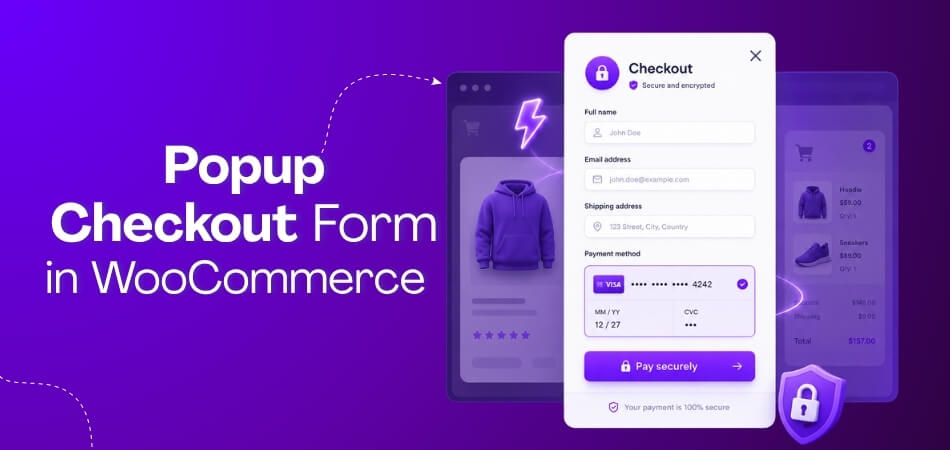
A WooCommerce popup checkout form is a checkout form that opens inside a popup or modal window instead of loading a separate checkout page. It lets shoppers enter billing, shipping, coupon, and payment details without leaving the product, cart, shop, or landing page they are viewing.
In most stores, the popup appears when a shopper clicks a button such as Buy Now, Checkout Now, or Quick Checkout. The form still uses the WooCommerce checkout system, but the purchase flow feels shorter because the customer can complete the order from the same page.
A popup checkout form is different from:
- Popup cart: Shows cart items, but may not include checkout or payment fields.
- Add-to-cart popup: Confirms that a product was added to the cart.
- Promotional popup: Shows offers, discounts, or email signup forms.
- Default checkout page: Loads the full checkout form on a separate WooCommerce page.
When Should You Use Popup Checkout in WooCommerce?
Use popup checkout in WooCommerce when you want shoppers to complete orders faster without moving through separate product, cart, and checkout pages. It works best for simple products, digital products, single-product stores, landing pages, and direct purchase campaigns.
Popup checkout is useful when the buying decision is already clear. Instead of sending shoppers to another page, the checkout form opens close to the product or CTA button, which can reduce friction in the purchase flow.
Popup checkout is a good fit for:
- Single-product stores that need a direct buying flow.
- Digital product stores that do not need shipping fields.
- Landing pages built for ads, campaigns, or offers.
- Fast-buy products where shoppers already know what they want.
- Simple WooCommerce stores that want fewer checkout steps.
Popup checkout may need extra testing for:
- Variable products with size, color, or option selection.
- Complex shipping rules based on location, weight, or cart value.
- B2B checkout forms with tax fields, custom fields, or approval steps.
- Payment gateways that use redirects, hosted pages, or embedded payment fields.
How to Add a Popup Checkout Form in WooCommerce? 3 Simple Methods
You can set up pop-up checkout in WooCommerce through a plugin, a side cart setup, or a developer method. Each option works differently depending on your store type, checkout flow, and technical needs. Each option below includes a clear use case so you can quickly decide what fits your store. If you want a reliable and scalable solution, starting with the best WooCommerce checkout plugin is usually the safest choice.
Method 1: Use a Popup Checkout Plugin
This method offers a ready popup checkout flow with minimal setup and strong compatibility. It focuses on speed, stability, and real checkout completion rather than visual tricks. We’ll use One Page Quick Checkout for WooCommerce by Plugincy in this process.
Best for: Stores that want a production-ready popup checkout without custom coding, need compatibility with real payment gateways, and want accurate tracking with fewer failure points.
Step 1: Install the Plugin
Free Version
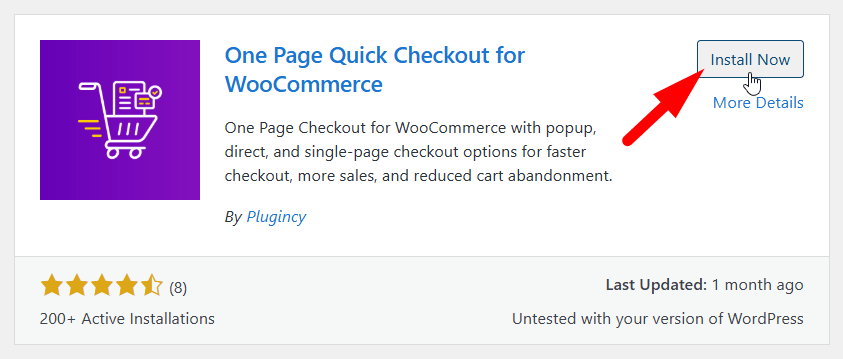
- Go to WordPress Dashboard → Plugins → Add New
- Search for “One Page Quick Checkout for WooCommerce”
- Click Install Now, then Activate

PRO Version
- Purchase the PRO plugin from the official website
- Download the ZIP file from the purchase email
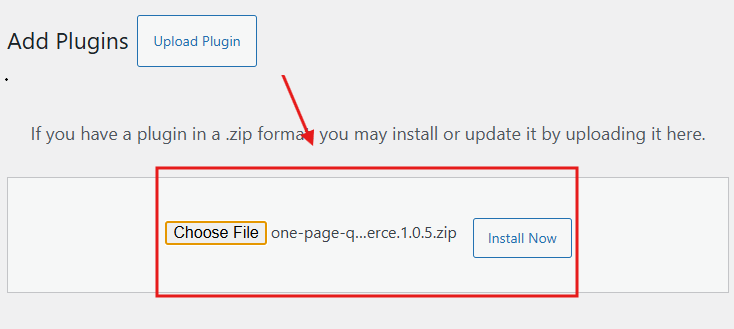
- Go to WordPress Dashboard → Plugins → Add New → Upload Plugin
- Upload the ZIP file, click Install Now, then Activate

- Enter the license key under One Page Quick Checkout settings
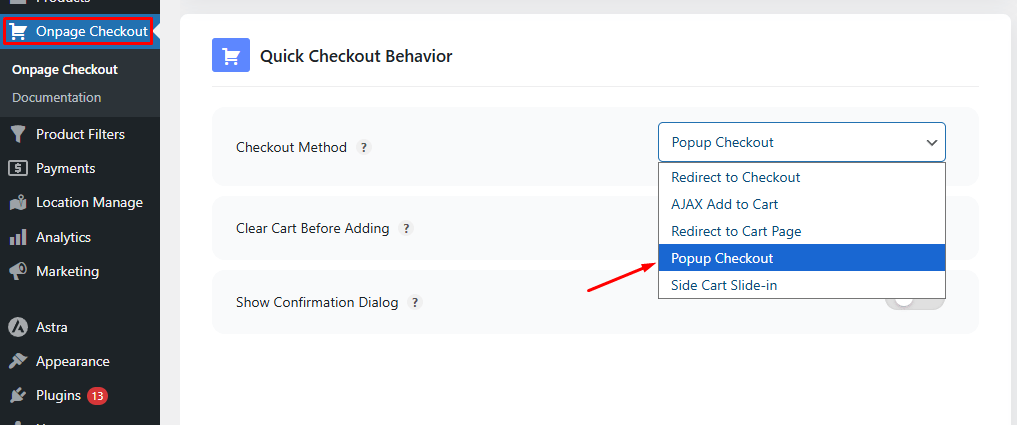
Step 2: Configure Popup Checkout Behavior
- Go to Dashboard → Onpage Checkout
- Select the Direct Checkout Tab
- Choose the popup checkout from the checkout behaviour option
- Save changes

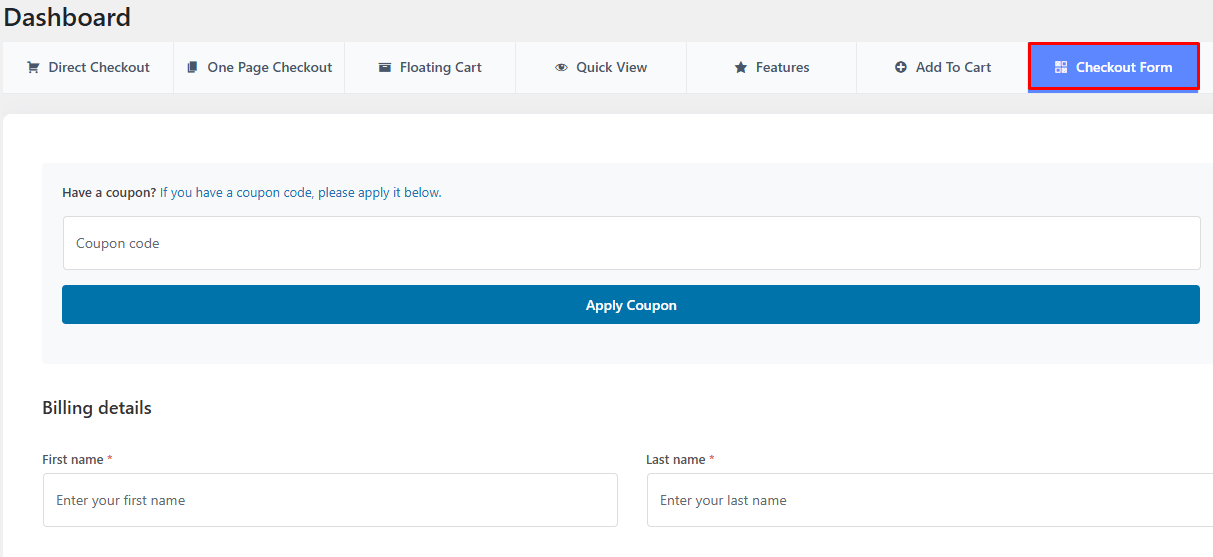
Step 3: Customize the Popup Checkout Form
- Go to Onpage Checkout
- Select Checkout Form Manage
- Customize checkout fields and layout
- Save changes

Step 4: Place a Test Order
- Add a product to the cart
- Open the popup checkout form
- Complete a test payment
- Check the order confirmation page
- Confirm the order appears in WooCommerce
Method 2: Use a Side Cart Plugin With Built-In Checkout Support
This method shows the cart and checkout flow inside an overlay, popup, or slide panel. It works well when shoppers need to review products, update quantities, apply coupons, and check totals before completing checkout.
Best for: Stores with larger carts, frequent quantity changes, coupon use, or shoppers who prefer reviewing items before payment, especially catalog-heavy WooCommerce stores.
- Install and activate a side cart plugin that supports checkout inside the cart overlay.
- Choose a popup, centered modal, or sliding panel layout based on your store design.
- Enable the checkout form or checkout button inside the side cart settings.
- Test quantity updates, coupon fields, shipping rates, taxes, and order totals.
- Check the flow on mobile to make sure the cart and checkout form remain easy to use.
- Exclude cart and checkout endpoints from caching if totals, coupons, or shipping rates do not update correctly.
Method 3: Developer Method Using a Modal and Checkout Shortcode
This method places the WooCommerce checkout shortcode inside a custom modal window. It gives developers more control over the popup design, trigger behavior, and checkout layout, but it needs careful testing because WooCommerce checkout depends on scripts, validation, shipping updates, coupons, and payment gateway fields.
Best for: Developer-led stores that use classic WooCommerce checkout and need a custom popup layout, custom theme behavior, or a checkout flow built around specific design requirements.
- Create a modal container and checkout trigger button.
- Add the [[woocommerce_checkout]] shortcode inside the modal content area.
- Make sure WooCommerce checkout scripts load on the pages where the popup appears.
- Handle form validation, error messages, coupon updates, shipping updates, and order total refreshes.
- Test payment gateway fields inside the modal before going live.
- Add accessibility controls, including focus trapping, keyboard navigation, and a visible close button.
- Exclude cart and checkout endpoints from aggressive caching.
For most store owners, One Page Quick Checkout for WooCommerce is a practical starting point because it provides a ready popup checkout setup without requiring custom modal development. Shortcode and custom-code methods can also work, but they need more testing around scripts, payment gateways, caching, and validation.
Why Choose WooCommerce Popup Checkout Form?
This section explains why store owners use popups beyond “it looks modern,” so you can decide based on real outcomes. Here are the WooCommerce popup checkout form benefits that usually matter most when you track checkout completion and time-to-order.
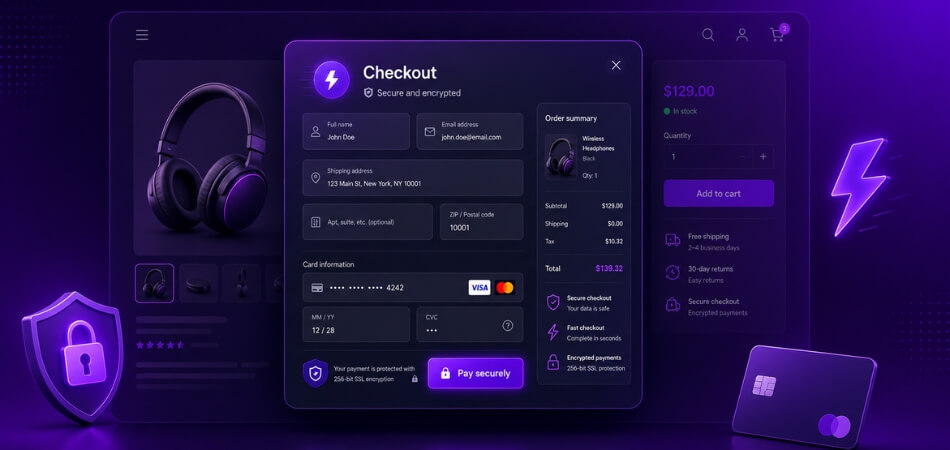
Faster buying flow on mobile
A popup reduces the number of full page changes, which often improves the mobile experience. When shoppers stay on the same page, they lose less context and are less likely to abandon during a slow redirect. This can be especially helpful for one-product purchases and impulse buys.
Cleaner path from product to payment
Popup checkout can remove the cart step for shoppers who already decided. That means fewer clicks and fewer chances to get distracted. If your store sells simple products, a popup checkout can feel like a direct purchase flow while still collecting required billing and shipping data.
Better control of cart review experience
With side cart and popup checkout, shoppers can review items, apply coupons, and edit quantity without leaving the page. This helps shoppers feel confident before paying, especially on category pages. For multi-item carts, it can reduce back-and-forth navigation.
These benefits are most effective when popup checkout is implemented correctly. Always test mobile behavior, real payment gateways, and cart updates to ensure the faster flow does not come at the cost of broken orders or lost tracking.
Common Popup Checkout Problems And Fixes
Popup checkout can break when WooCommerce scripts, payment fields, cart updates, or theme elements do not load correctly inside the popup. Most issues are not caused by the popup design itself, but by conflicts with caching, payment gateways, checkout fields, or mobile layout behavior.
Popup Checkout Not Opening
The popup may not open if the trigger button is not connected properly, the plugin display rule is disabled, or another script blocks the popup action. This can also happen after theme updates, cache changes, or JavaScript minification.
- Check the popup trigger button and display settings.
- Clear plugin, browser, server, and CDN cache.
- Disable script minification temporarily and test again.
- Check for JavaScript errors in the browser console.
- Test with a default WooCommerce theme to find theme conflicts.
Checkout Fields Not Loading
Checkout fields may fail to load when WooCommerce checkout scripts are missing from the page where the popup appears. The issue can also come from field editor plugins, shortcode conflicts, or a mismatch between classic checkout and checkout block setup.
- Confirm the correct WooCommerce checkout page is assigned.
- Make sure checkout scripts load on popup trigger pages.
- Disable checkout field editor plugins temporarily.
- Avoid loading multiple checkout forms on the same page.
- Test whether the issue comes from shortcode or block checkout behavior.
Payment Gateway Not Showing
Payment fields may not appear inside the popup if the gateway needs special scripts, redirects, hosted payment pages, or embedded payment elements. This is common when adding a popup checkout form in WooCommerce without testing each active payment method.
- Test every active payment gateway inside the popup.
- Confirm SSL is active on the checkout page.
- Disable optimization plugins that delay payment scripts.
- Check whether the gateway supports modal checkout behavior.
- Test a basic payment method to compare gateway-specific issues.
Cart Total Not Updating
Cart totals can stop updating when coupon fields, shipping rates, taxes, or quantity changes are blocked by cache or AJAX conflicts. This can make the popup show outdated prices, which may confuse shoppers before payment.
- Exclude cart, checkout, and account pages from caching.
- Test coupon codes inside the popup.
- Check shipping and tax updates after address changes.
- Disable aggressive AJAX or fragment optimization settings.
- Refresh cart fragments if totals lag after product changes.
Popup Looks Broken On Mobile
Mobile layout issues happen when the popup width, field spacing, buttons, or scroll behavior is not optimized for smaller screens. A popup that works on desktop can still feel cramped or hard to complete on mobile.
- Use a full-width or near full-width popup on mobile.
- Keep form fields in a single-column layout.
- Make buttons large enough for touch screens.
- Keep the close button visible and easy to tap.
- Test scrolling, payment fields, and order button placement on real devices.
SEO And Conversion Tips For WooCommerce Popup Checkout
Popup checkout can improve the buying flow, but only when it loads fast, works smoothly, and does not interrupt shoppers. If you use a plugin like WooCommerce One Page Checkout to create a popup checkout experience, focus on speed, tracking, mobile usability, and a clean checkout path.
- Keep Checkout Scripts Lightweight: Load popup checkout scripts only where they are needed, such as product pages, cart pages, or campaign landing pages.
- Avoid Aggressive Popup Behavior: Do not open checkout automatically before shoppers show buying intent. Use clear buttons like Buy Now or Checkout Now.
- Track Checkout Button Clicks: Monitor popup opens, checkout starts, payment attempts, failed payments, and completed orders to understand how shoppers move through the checkout flow.
- Compare Conversion Before And After Setup: Check conversion rate, cart abandonment, average order value, and checkout completion rate after adding popup checkout.
- Keep The Popup Accessible: Make sure shoppers can use keyboard navigation, see error messages clearly, and close the popup without trouble.
- Protect Page Speed: Avoid heavy animations, extra banners, or unnecessary scripts inside the popup checkout flow.
- Test On Real Devices: Check desktop, tablet, and mobile behavior because popup checkout can perform differently across screen sizes.
Frequently Asked Questions
These quick FAQs cover practical concerns store owners often think about after understanding popup checkout setup, performance, and tracking.
Will Popup Checkout Affect SEO Or Page Indexing?
Popup checkout does not affect SEO directly because it runs after user interaction. Search engines still see your normal product and checkout pages. Just avoid blocking important scripts or URLs with cache or security rules.
Can Popup Checkout Work With Subscription Or Membership Products?
Yes, popup checkout can work with subscriptions or memberships if the plugin supports the required checkout fields. Always test renewal flows and first payments. Some advanced subscription logic may still need full checkout as a fallback.
Is Popup Checkout Safe For High-Traffic Stores?
Popup checkout is safe for high-traffic stores when caching and scripts are handled correctly. Exclude cart and checkout endpoints from cache. Stress testing during peak traffic helps catch fragment or session issues early.
Does Popup Checkout Support Guest Checkout Properly?
Popup checkout fully supports guest checkout if WooCommerce guest checkout is enabled. Customers can complete purchases without creating accounts. Always confirm validation and payment steps work smoothly for logged-out users.
Can I Turn Off Popup Checkout For Certain Products?
Yes, most setups allow you to disable popup checkout for specific products. This is useful for complex items or custom pricing flows. Use a full checkout where extra steps or explanations are required.
Concluding Words
Popup checkout can make a real difference when it is set up with care. The right method keeps shoppers focused, reduces delays, and avoids common checkout breaks. Testing payments, tracking, and mobile behavior before going live helps protect sales and user trust.
Once you understand how to add a popup checkout form in WooCommerce, choosing the right setup becomes much easier. Start simple, test often, and scale only after you see stable results across devices and payment methods.